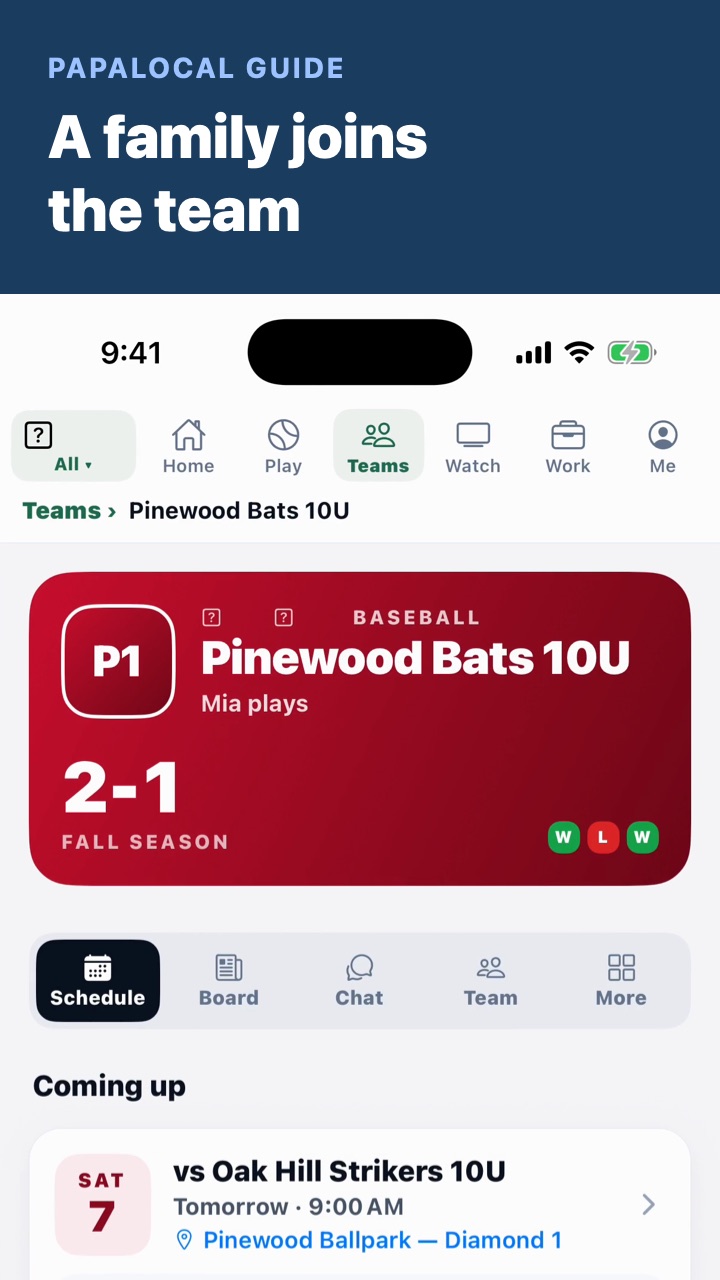
To see your kid's sports schedule, tap the link your coach texted. It opens the team's join page. With the app, one more tap opens the team with the code in. Pick your child and tap Join with my kid. Every game and practice is on the schedule, with the gym and a reminder the day before.
Step by step
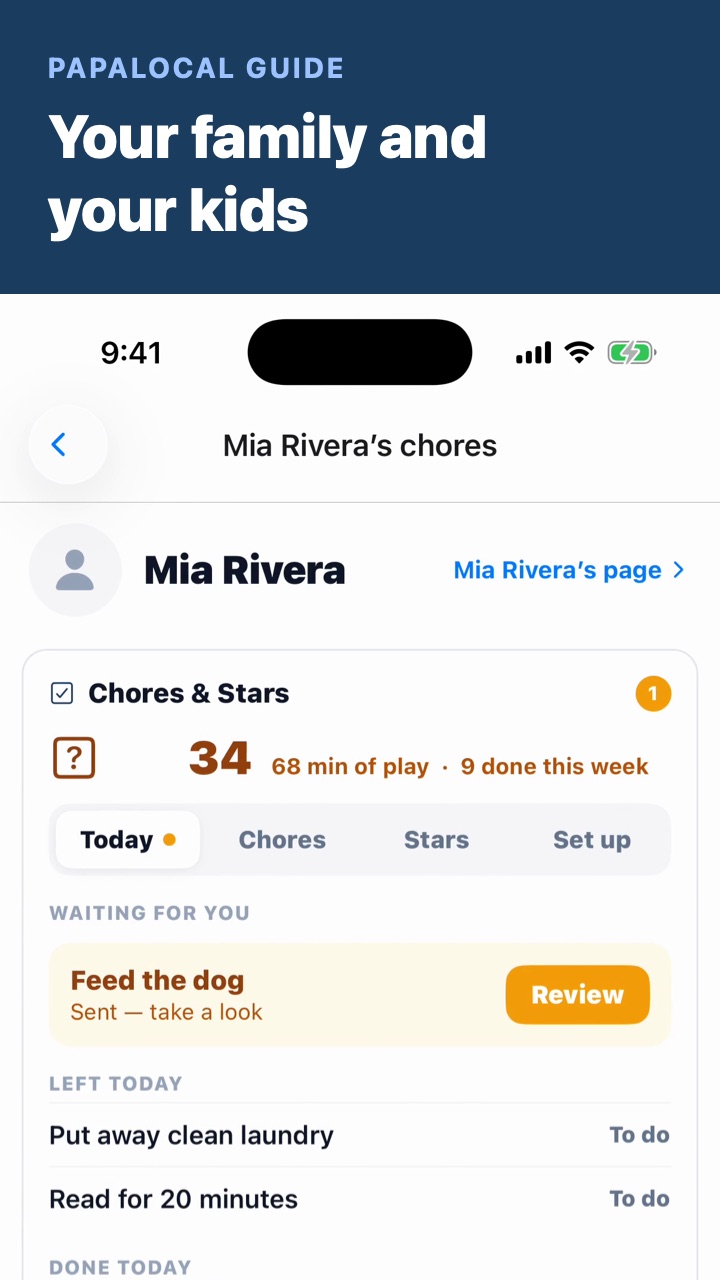
Before you start: to pick your child, they need to be on your Family page. Your family and your kids shows how.
0:00Tap the coach's link. The coach texts you a link. Tap it, and the team's join page opens. With the app, tap Already have the app? Open it there. Papalocal opens the team with the code in.
0:06Join with your child. Under Who plays on this team?, pick your child. Then tap Join with my kid.
0:09See the schedule. Every game and practice is on the team's Schedule, with the gym, and a reminder the day before.
0:16Say who's coming. Tap Going, Maybe or Can't on a game or practice, so the coach knows who'll be there.
0:20Open a game. Tap a game for where it is, with Map & directions, and what to wear and bring.
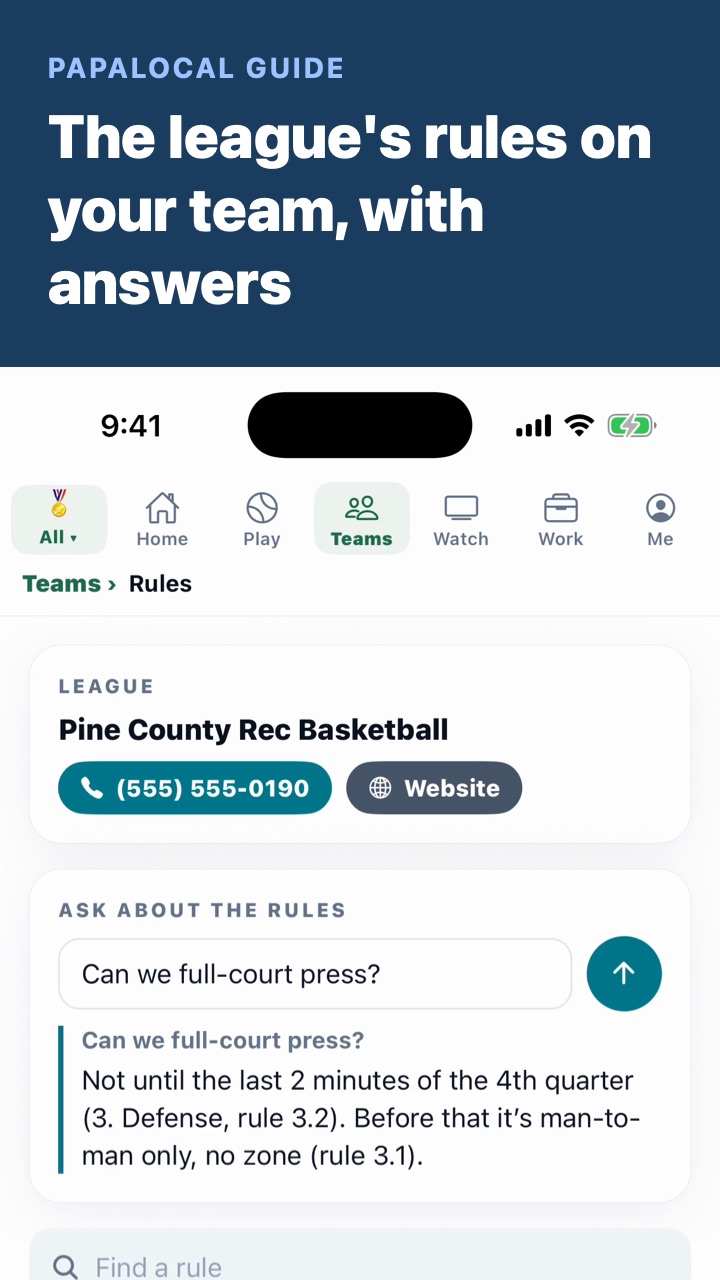
0:25Ask about the rules. Tap More, then Rules, for the league's rules. Ask a question, like how much playing time the rules give each child.
0:32Reach the coach.Families has the coach's number, to call or text.
Good to know
The coach lets each family in. After you tap Join, in the app or on the web page, the coach gets a note and says yes. Then you and your child are on the team. Until then you don't see the roster, and nobody else on the team sees yours.
Asking about the rules uses your AI credits. A new account starts with 100 free credits. More are 1¢ each on papalocal.com, in packs from $5. The AI is told to answer from the league's rules and name the rule, so read that rule too.
The coach's number shows on Families unless the coach chose to keep it private.
Not covered here. Team fees or a registration checklist. A family joins the team shows those, on teams that use them.
The Pinewood Hornets 10U, the coach and every family and child in the video are made up.
Written with AI from this video's script and screens.
Your kid's team, in one place
The everything app. As simple as you want it, or as complete as you allow it to be.
Looking for a kids sports calendar app? On a team that uses Papalocal, every game and practice is on this one schedule.
Tap the coach's link to join on the web, or use Join with a code in the app
Say who's going, right on the schedule
Finish the registration checklist: forms, emergency card, uniform size and fees
Free to join, no card. Your club sets its dues and fees, and you pay them to the club.
Not to join. The link opens a web page where you sign up or log in. You join as a parent once the coach lets you in. The schedule and rules in this video are in the app.
What if the link doesn't open the team?
In the app, open Sports, or add it from the App Store first. Tap Join with a code and type the code from the coach's text. It's eight letters and numbers.
Who sees my phone number and email?
Coaches always see them. Other families see them if the coach picks Families see each other, or you share yours. Keep private hides them from other families. It covers a number the coach typed once your account has that number.
Who sees my child on the team?
Everyone on the team sees your child's first name, jersey number and photo. Outside the team, players show as a jersey number.
Will I get a reminder before each game?
Yes, in the app. Every game and practice on the team's schedule sends a notification the day before, if your notifications are on.
Comments
Log in to comment. New here?