Papalocal, the everything app
Guides
61 short videos showing how to do something in Papalocal, with a voice and a red circle on every tap.
For you and your family
Getting started
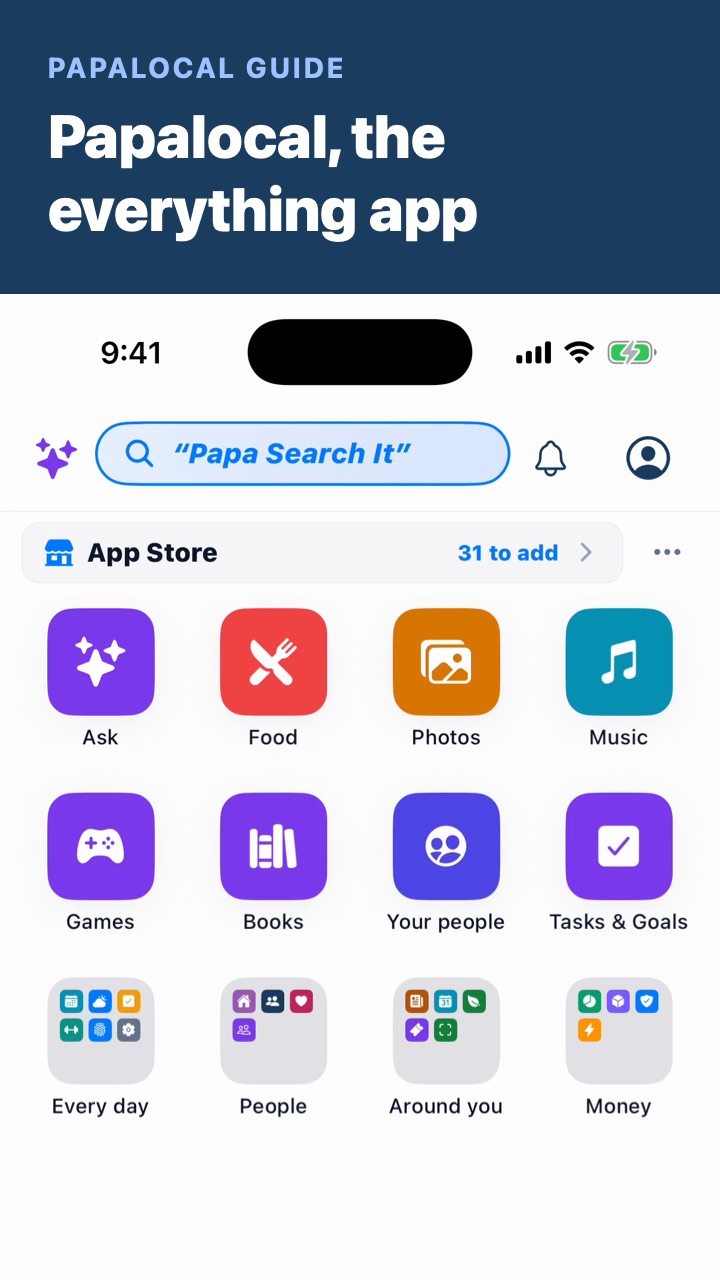 Papalocal, the everything app: a tour
The header, the footer and what each icon does, the + button, Shop, Circles, Apps, Books, Music, your menu and Manage on Web. As simple as you want it, or as complete as you allow it to be.
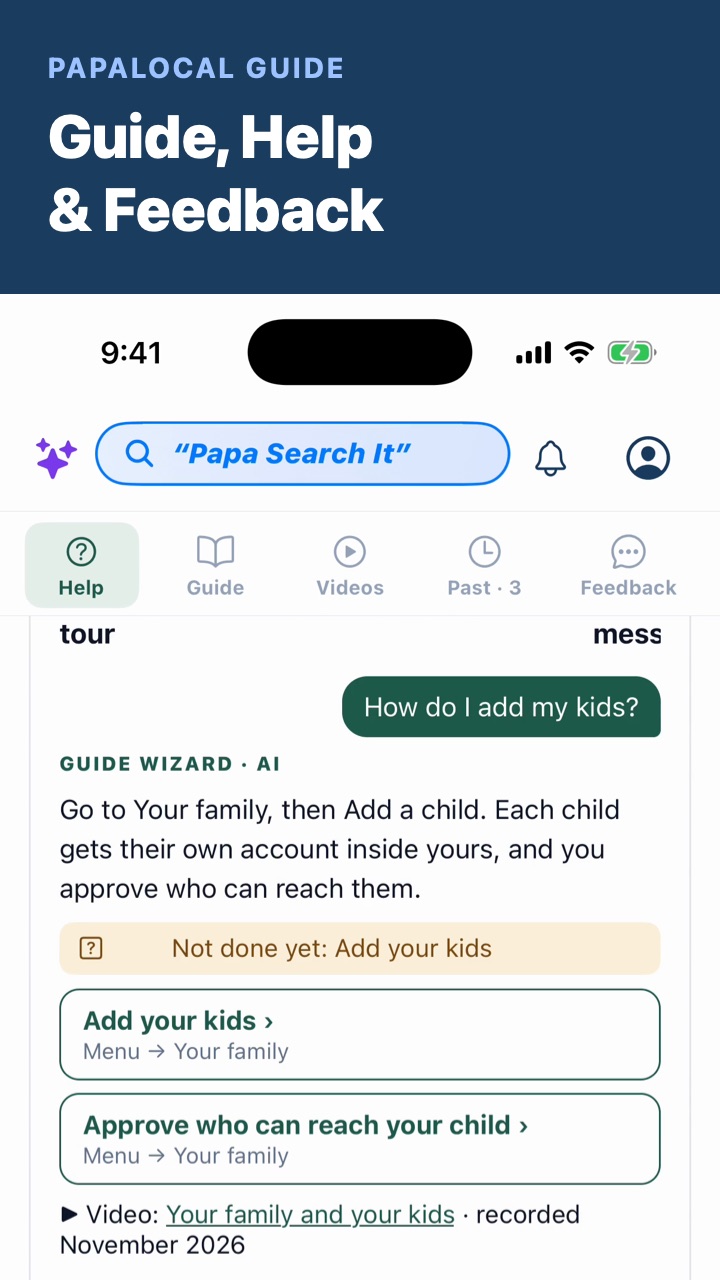 Guide, Help & Feedback: get help with anything
Where to find it, asking in your own words, answers with a button into the app, What can I do here, your past questions, the whole Guide, and sending feedback.
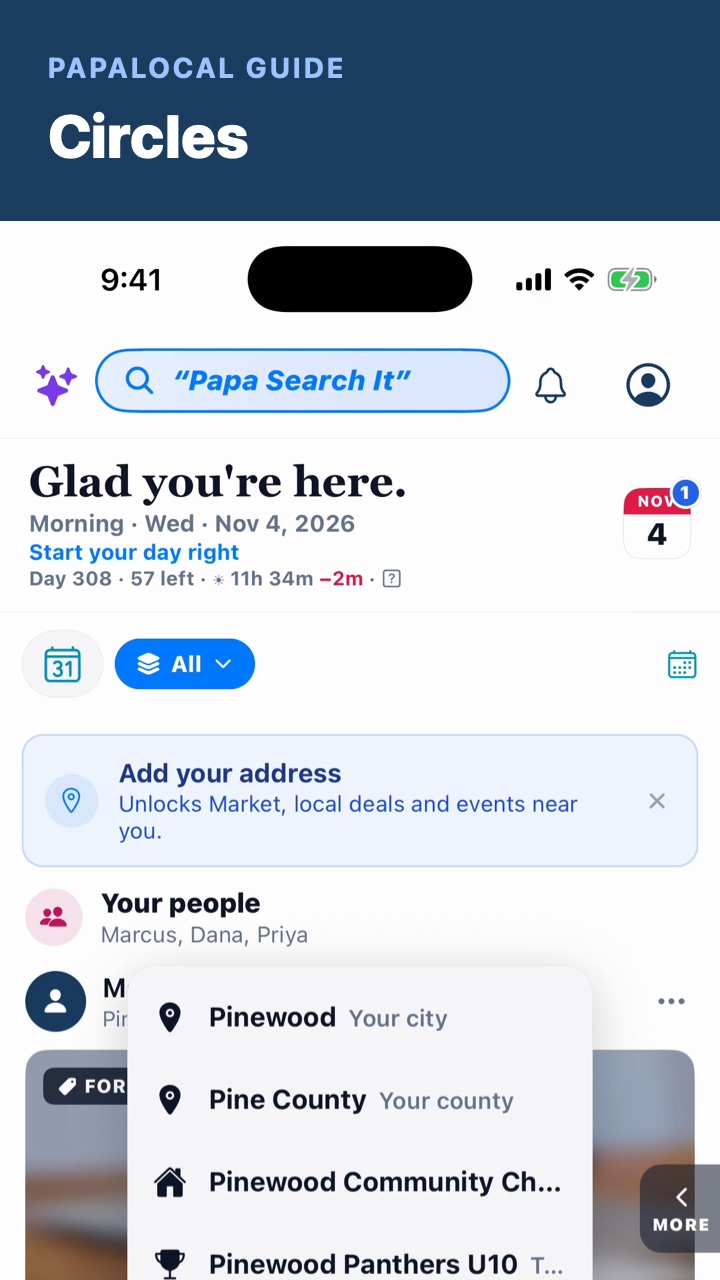 Circles: your family, your city, your teams
What a circle is, how yours are sorted, and stepping into each kind: your city, a team, your congregation, a club and your family.
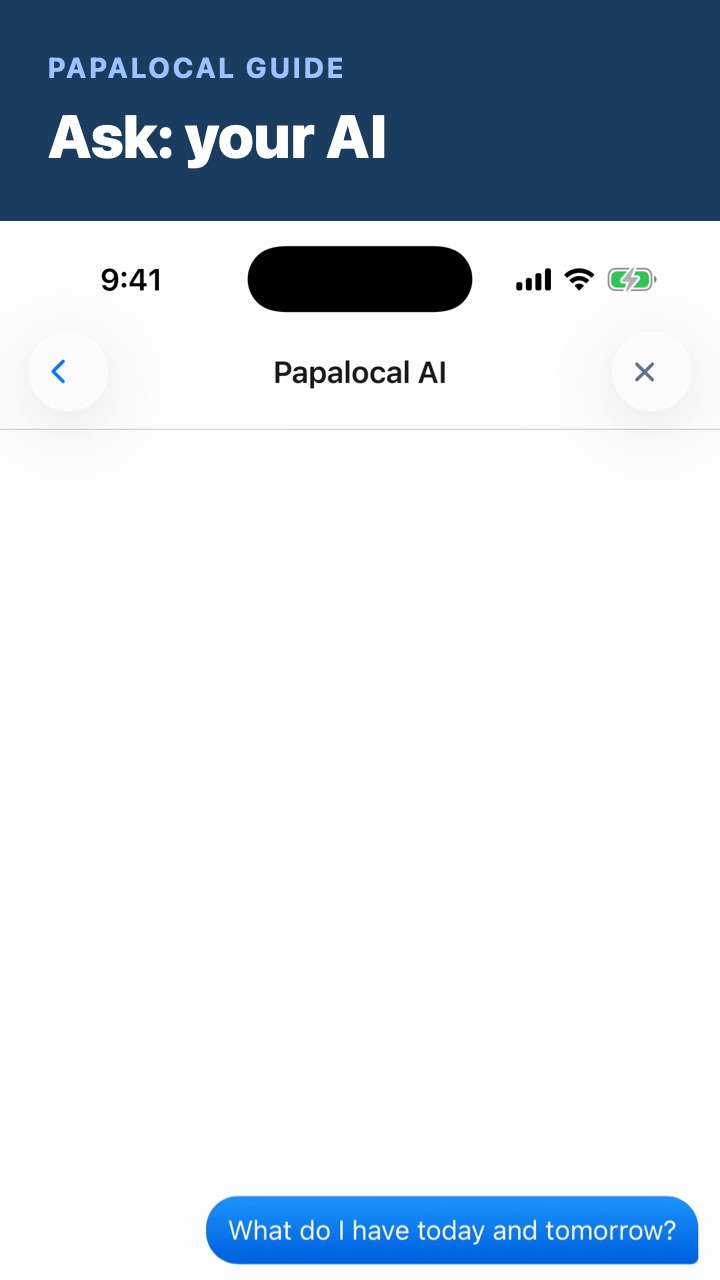 Ask: your AI
Where Ask is, asking in your own words, an answer that reads your day, and What Ask can see and how to turn it off.
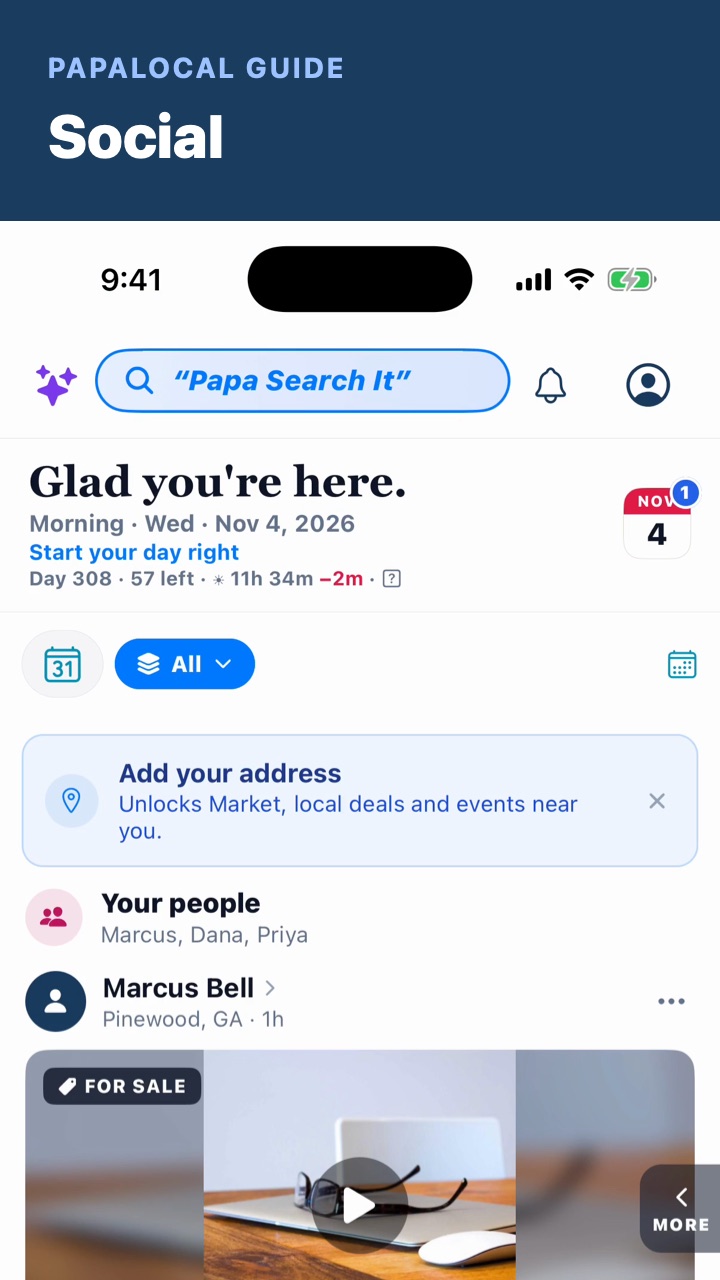 Social: your feed, posting, following
Your day, your people's posts, swiping, reacting and sharing, the All filter, and posting something of your own.
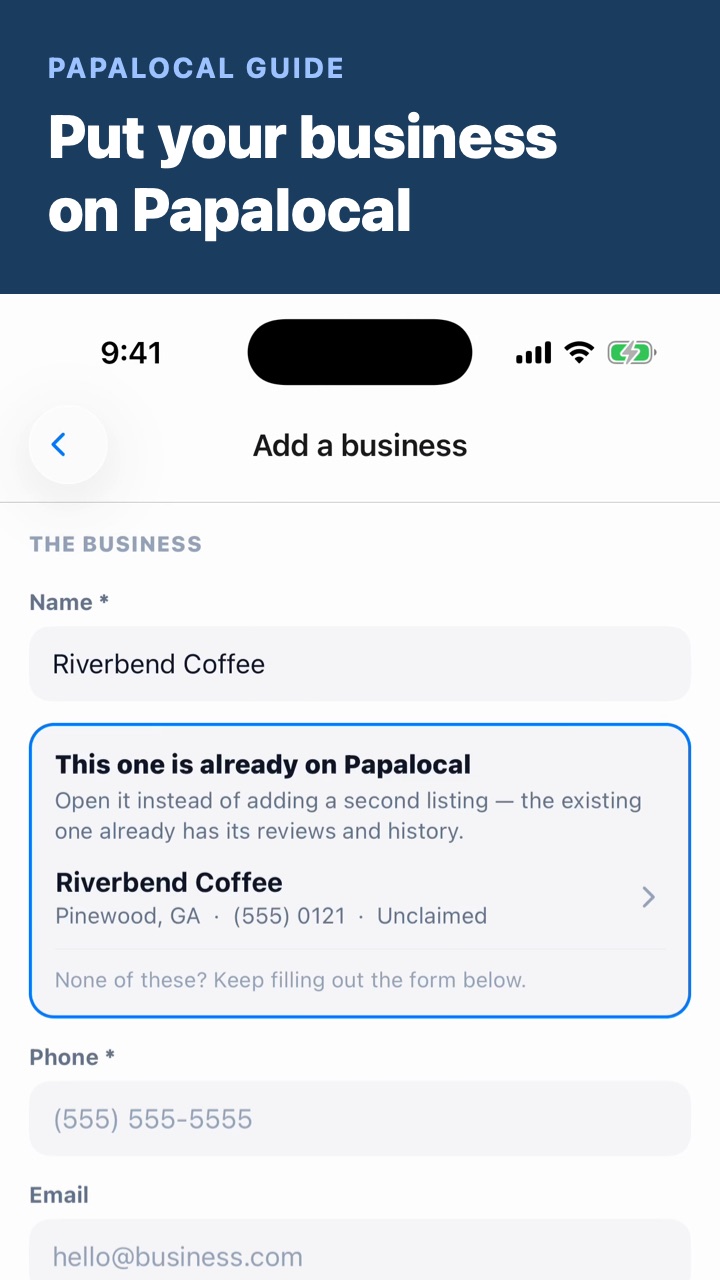 Put your business on Papalocal
Your picture → Add a business: Papalocal checks whether it's already listed, so you claim it, or you add it with its phone and address and pick I own it.
You
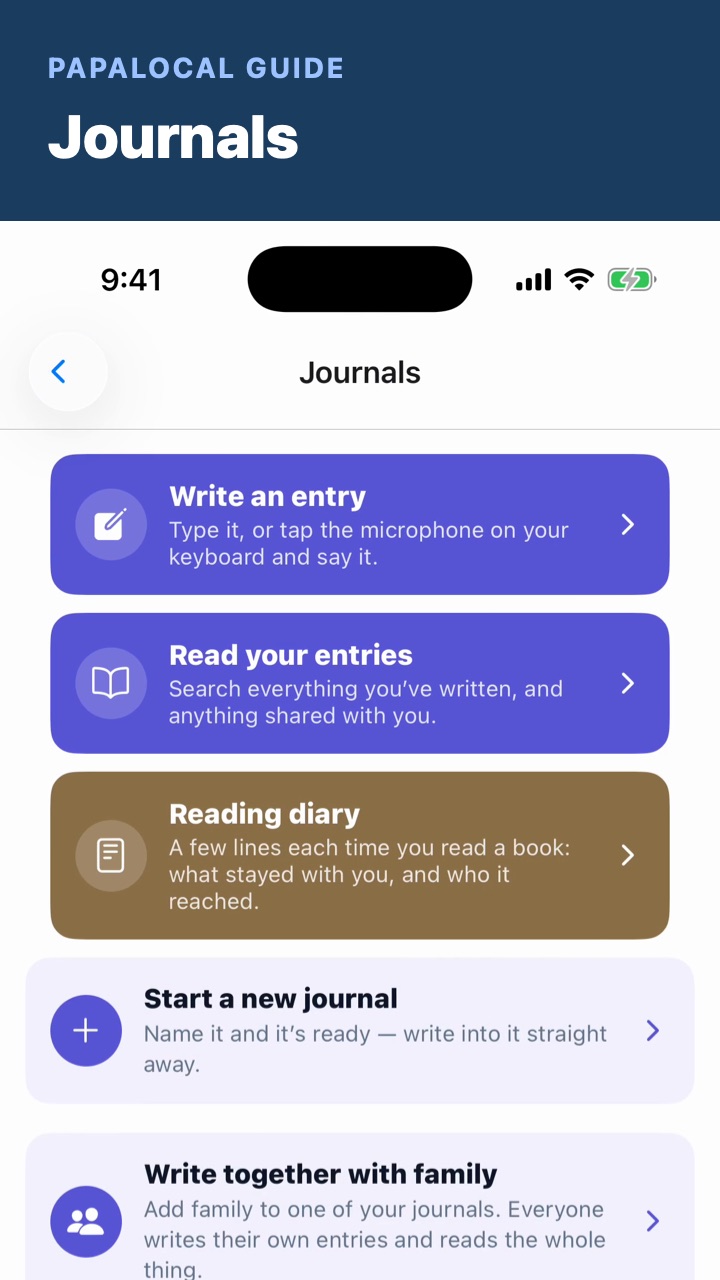
The people you have
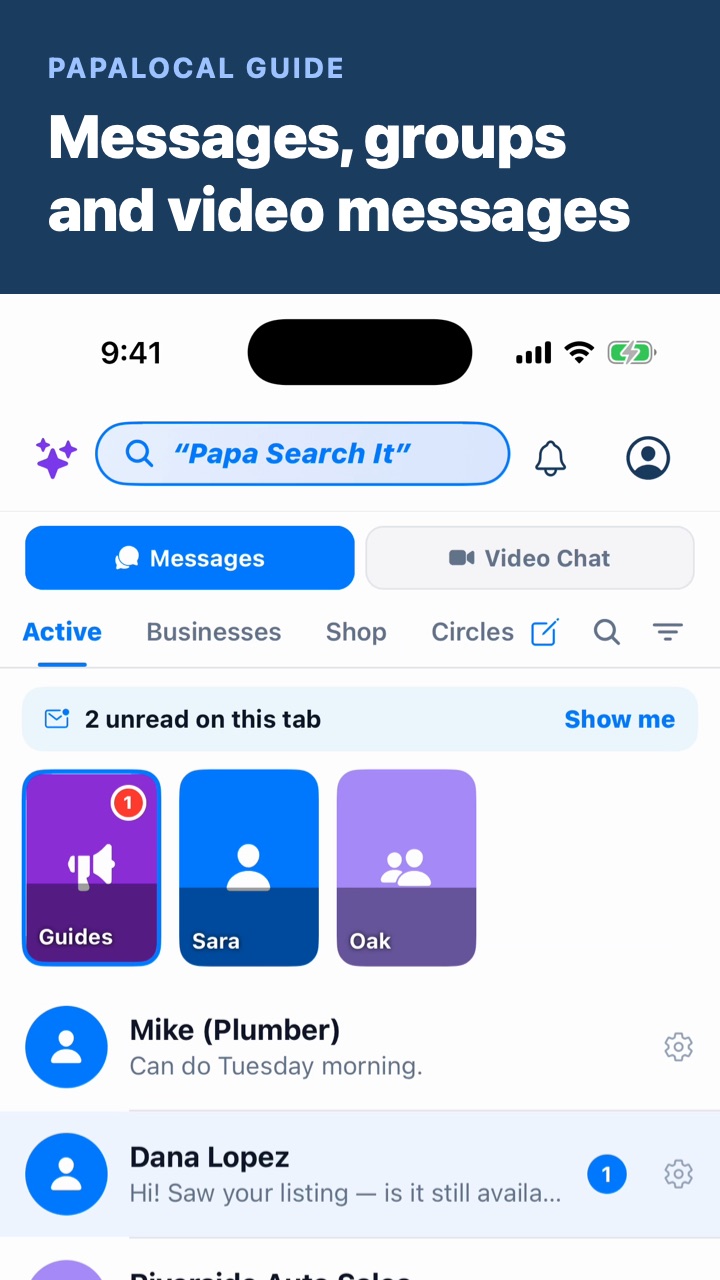 Messages, groups and video messages
Opening a conversation, adding photos, video and voice, starting a new one, inviting someone who isn't on Papalocal yet, groups, the Businesses and Shop tabs, and Video Chat.
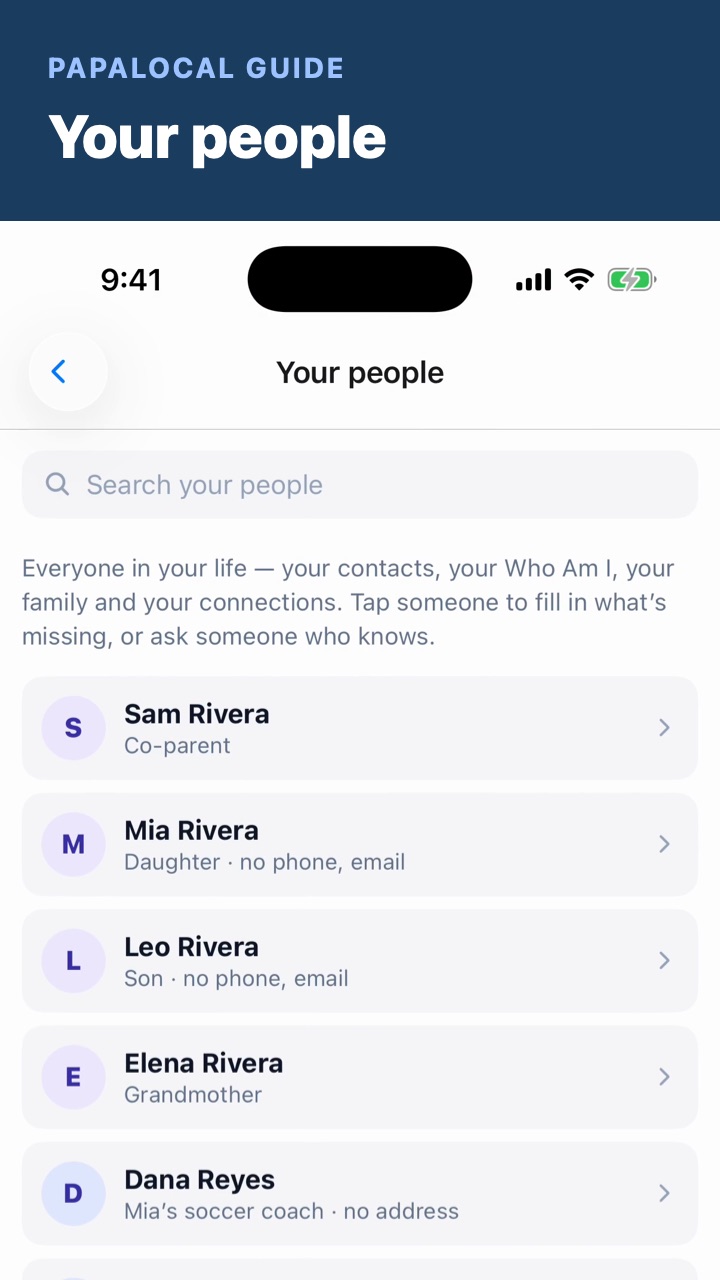 Your people
Everyone in your life in one list, what's missing for each, their card, and asking someone who knows to check it.
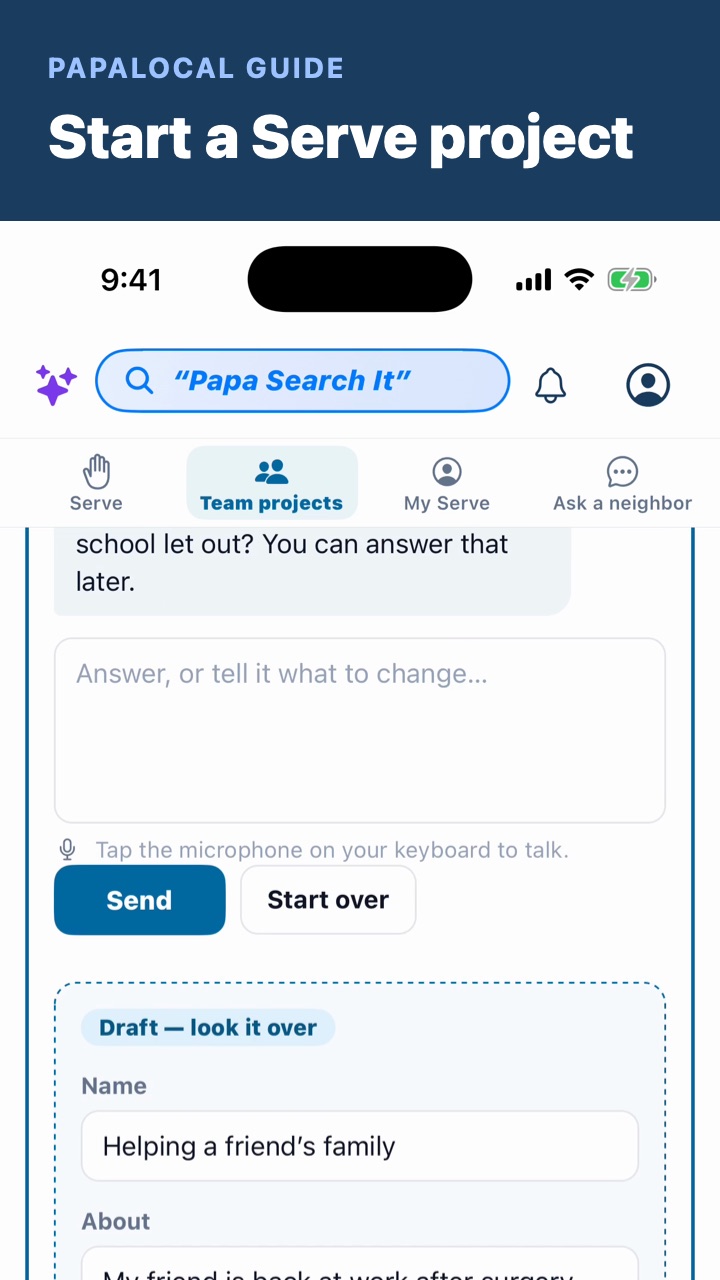 Start a Serve project
Tell Papalocal what's going on, look over the draft, change a time, pick who it's for, create it and invite your helpers.
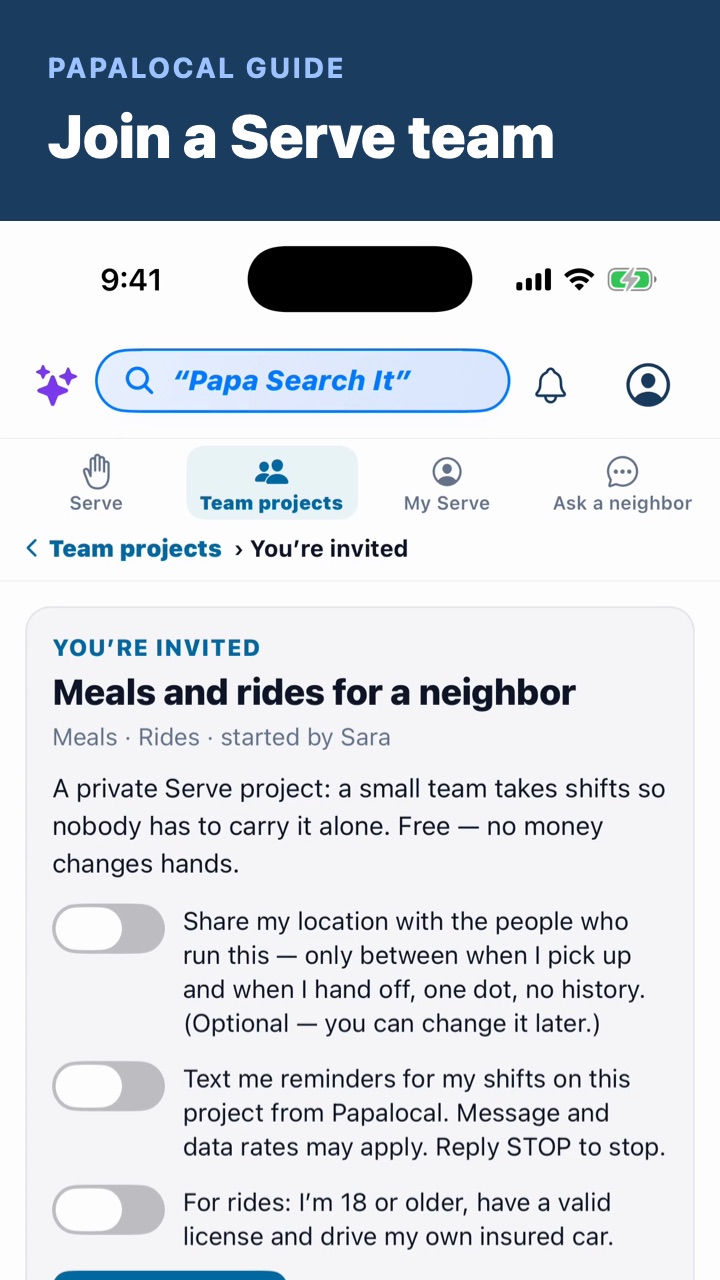 Join a Serve team
The invite your friend sent, Join the team, and the team chat with this week's times on top.
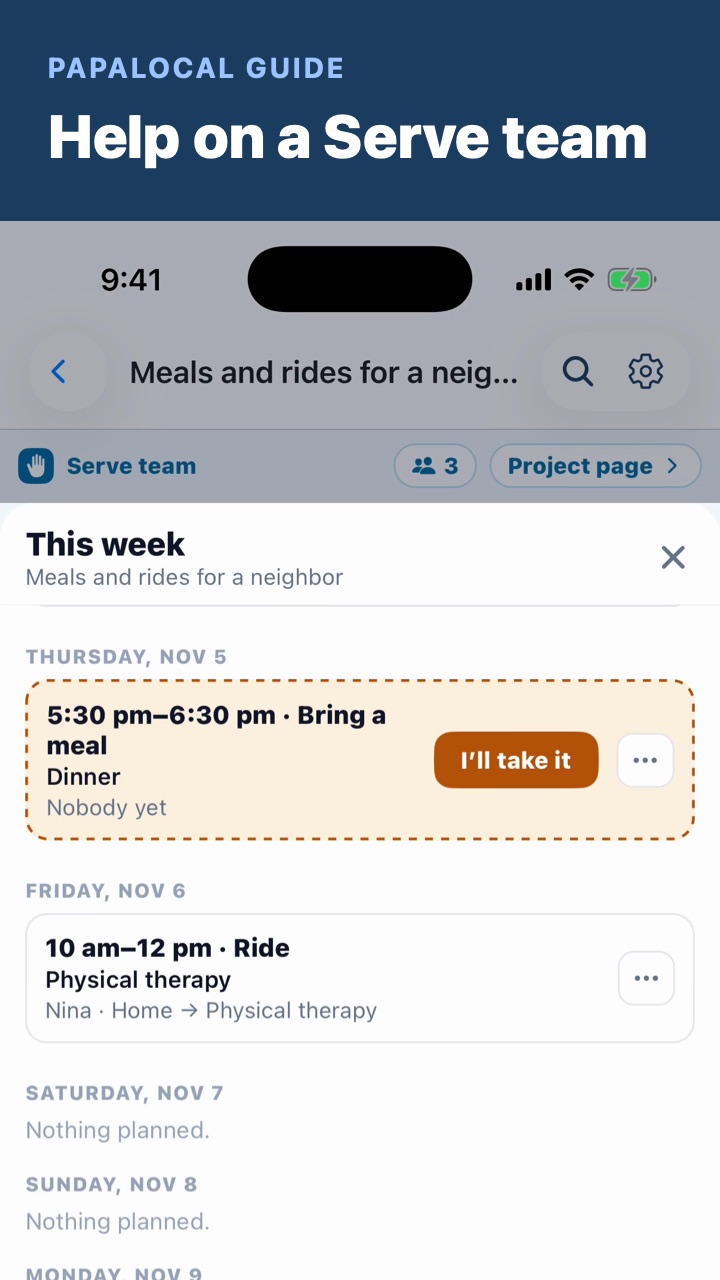 Help on a Serve team
Take a time with I'll take it, give it back if something comes up, and talk with the team in its chat.
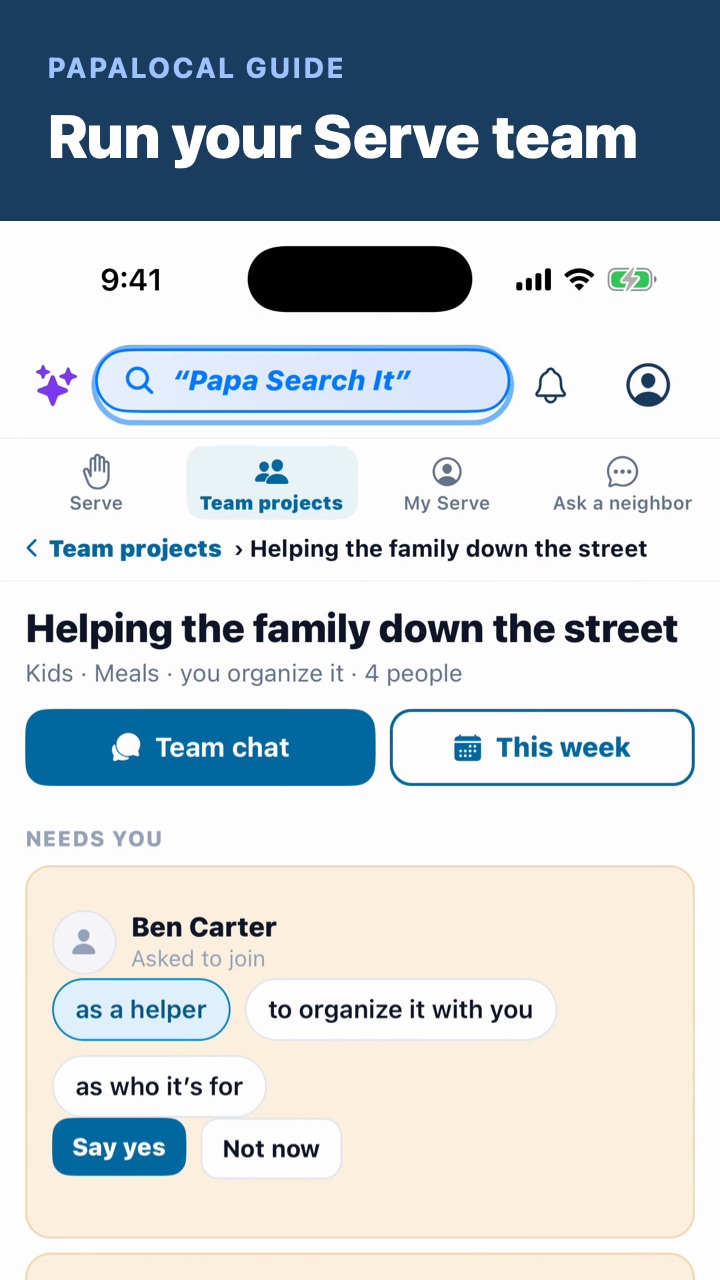 Run your Serve team
The project page: who asked to join, the weekly times, a time just once, Not needed, your people, who it's for, and pausing or ending it.
Your kids
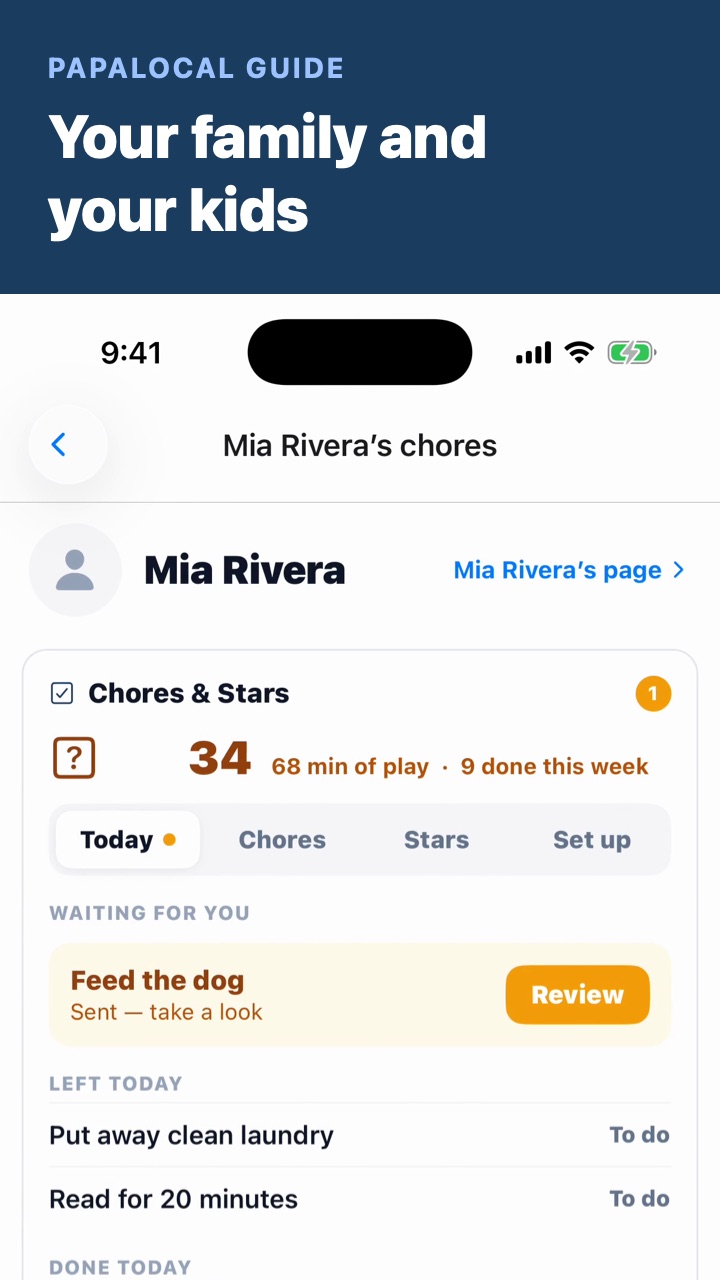
Day to day
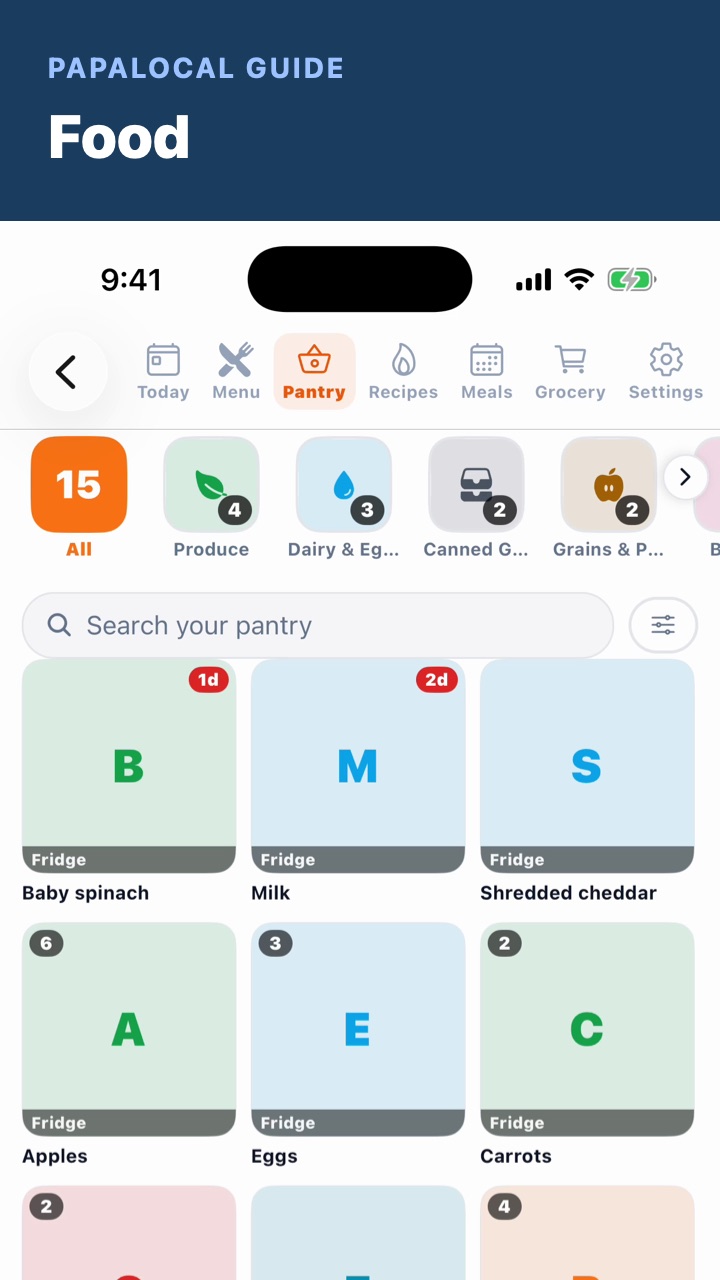 Food: pantry, grocery list, recipes, the week
Today with your meals and goals, the pantry, the grocery list shared with your household, a family recipe with Start cooking, and the week's dinners with who cooks.
 Photos
Your pictures and videos by day, everyone's or just yours, albums, and a photo full size with reactions, comments and favorites.
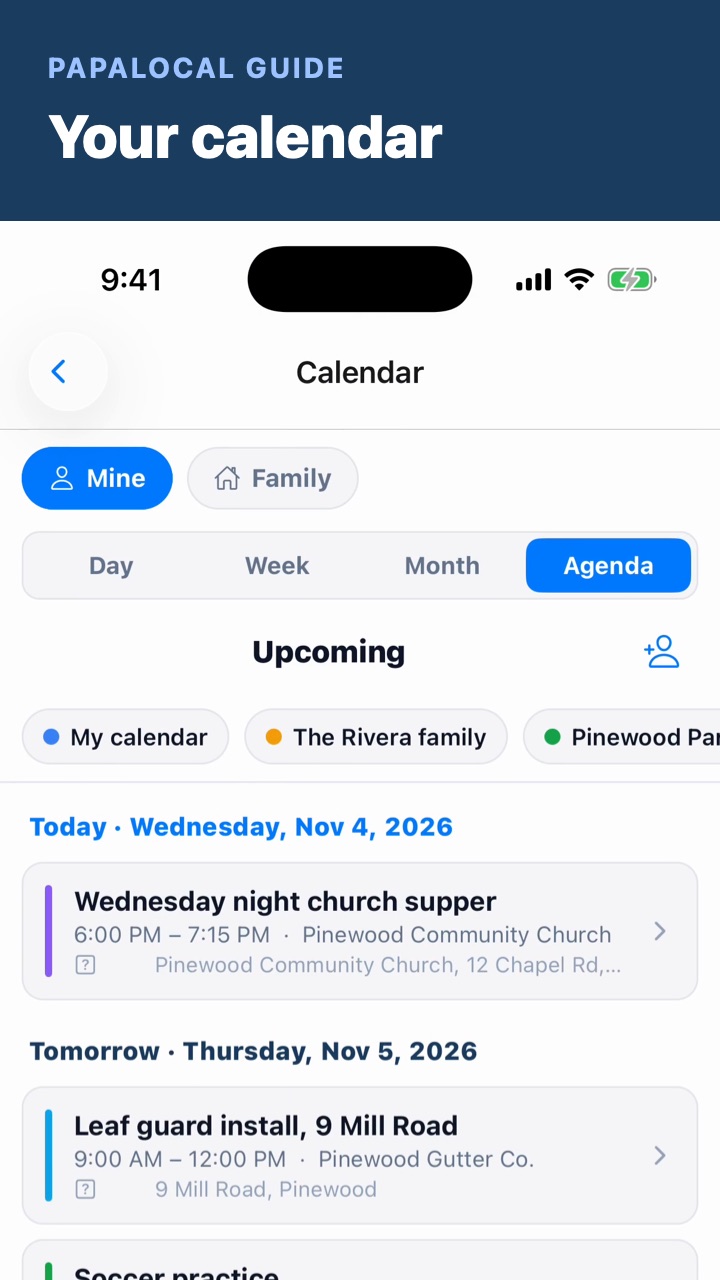 Your calendar
Everything coming up in one calendar, Week and Month, your family's plans together, adding something, and sharing it.
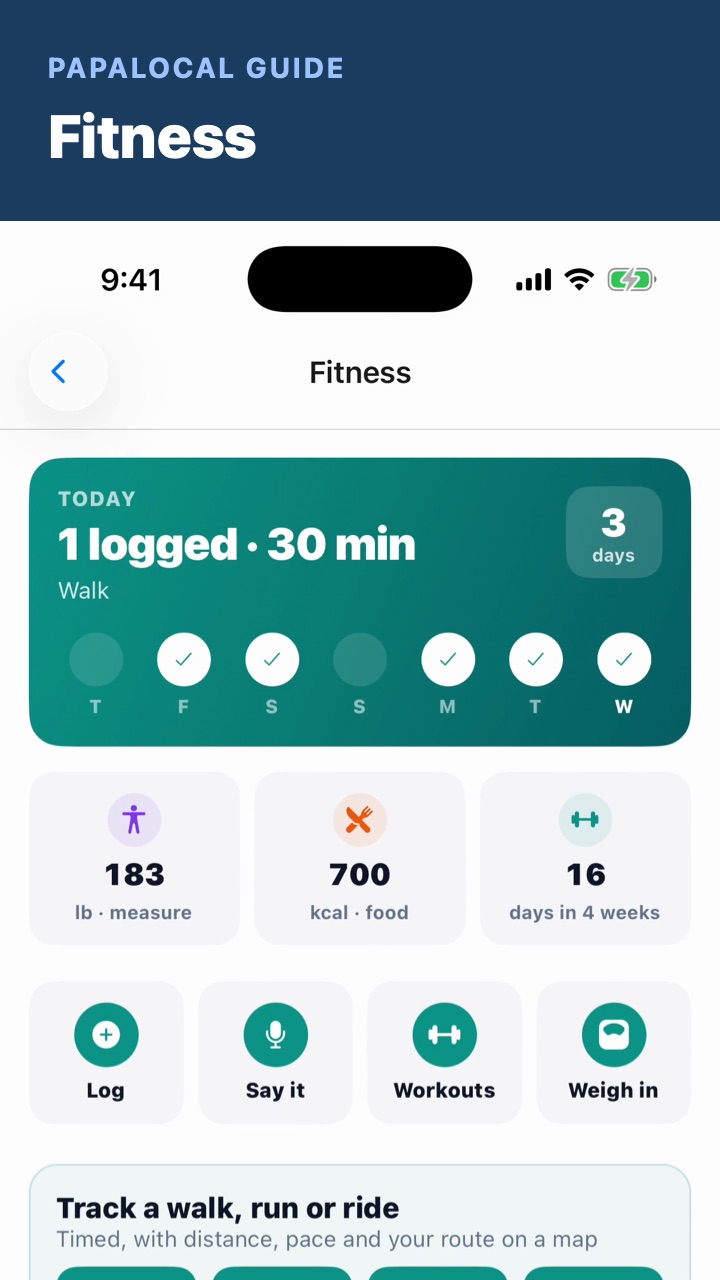 Fitness
Today and your week, logging or saying it, tracking a walk or a run, and ticking off a saved workout.
Money
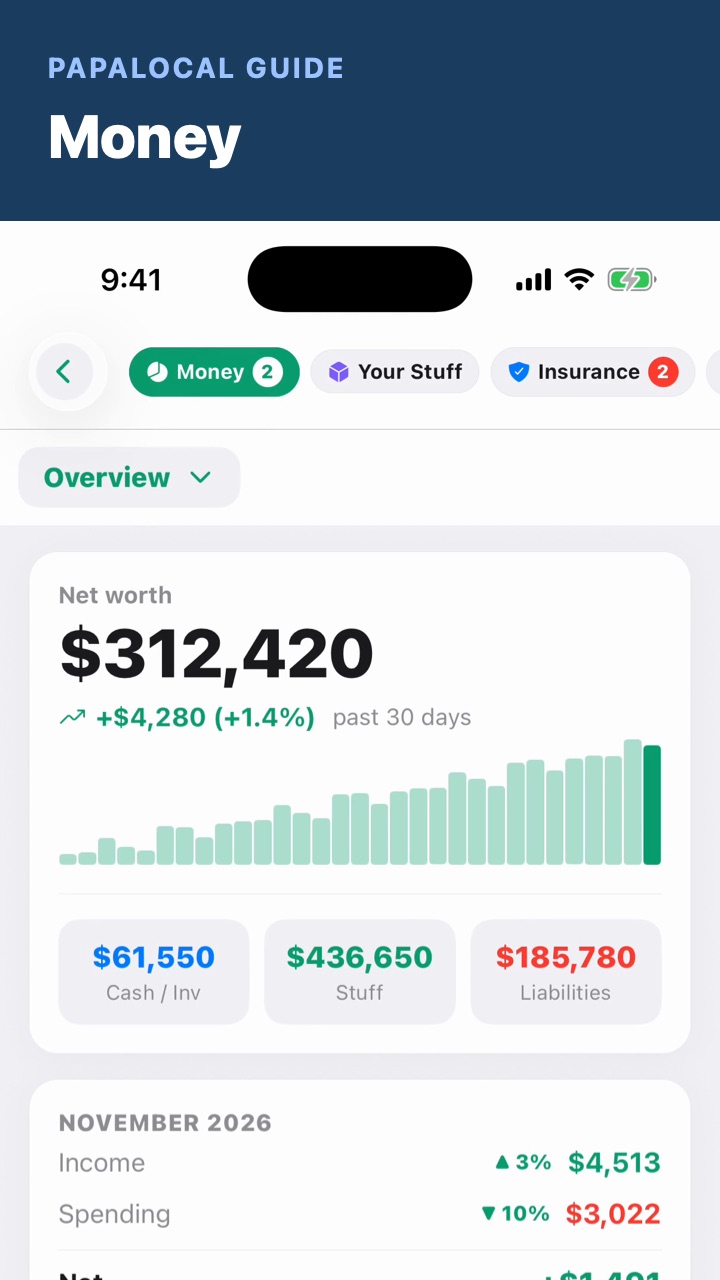 Money: what you have, in one picture
Your net worth, this month, activity, budgets, Your Stuff and Insurance.
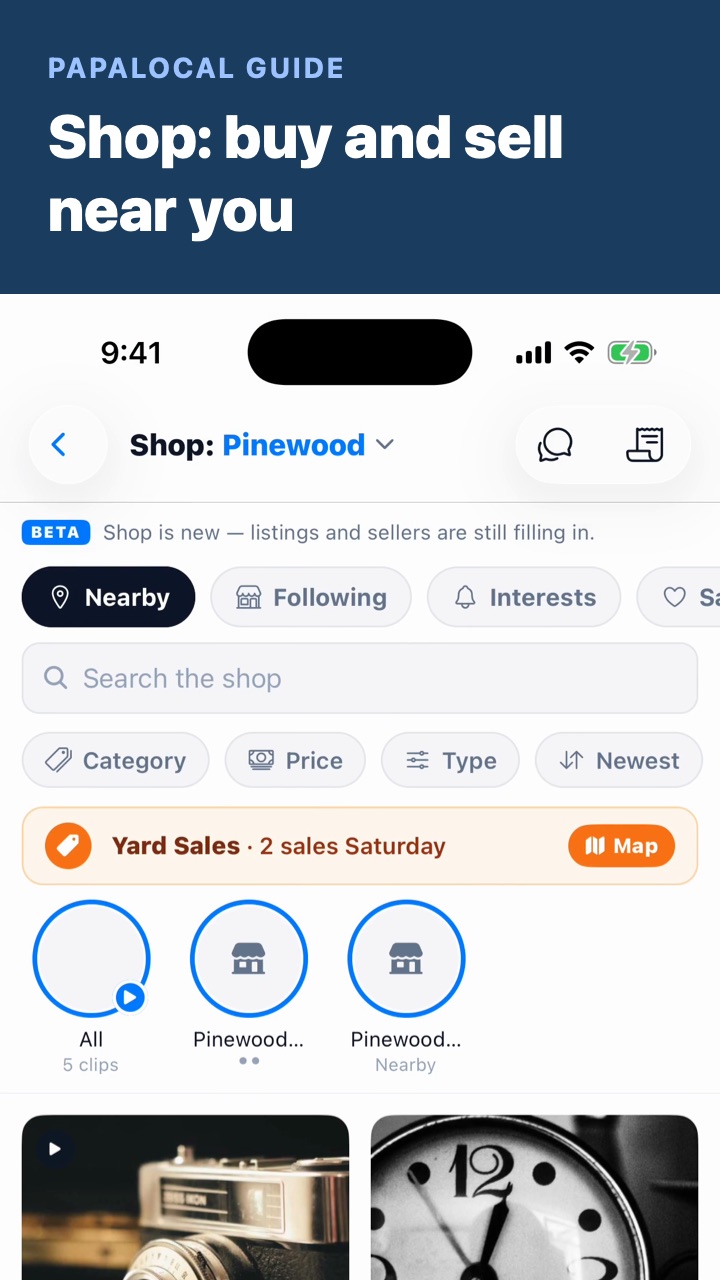 Shop: buy and sell near you
Search and filters, yard sales, a listing and messaging the seller, and posting something of your own to sell, trade or give away.
To read, watch and make
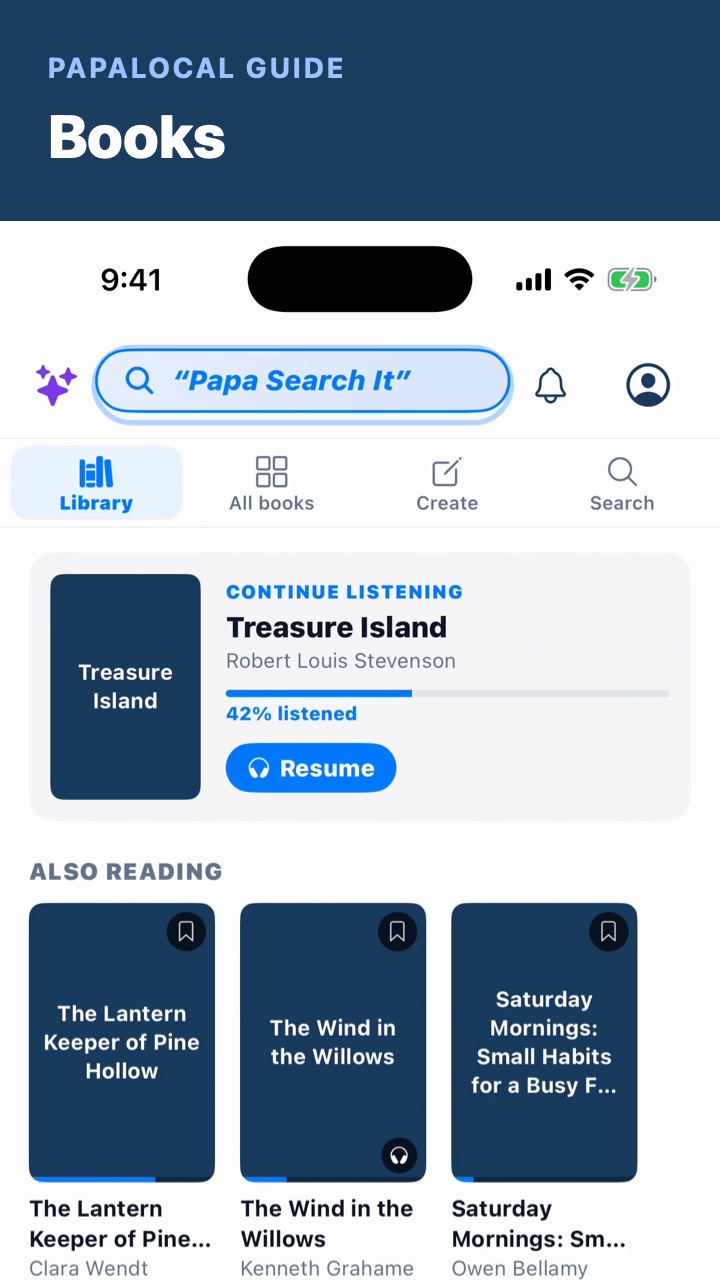 Books: read, listen, write your own
Your library and Continue listening, All books, reading a book or listening to it, books marked kid friendly, and Create for stories, poems and storybooks.
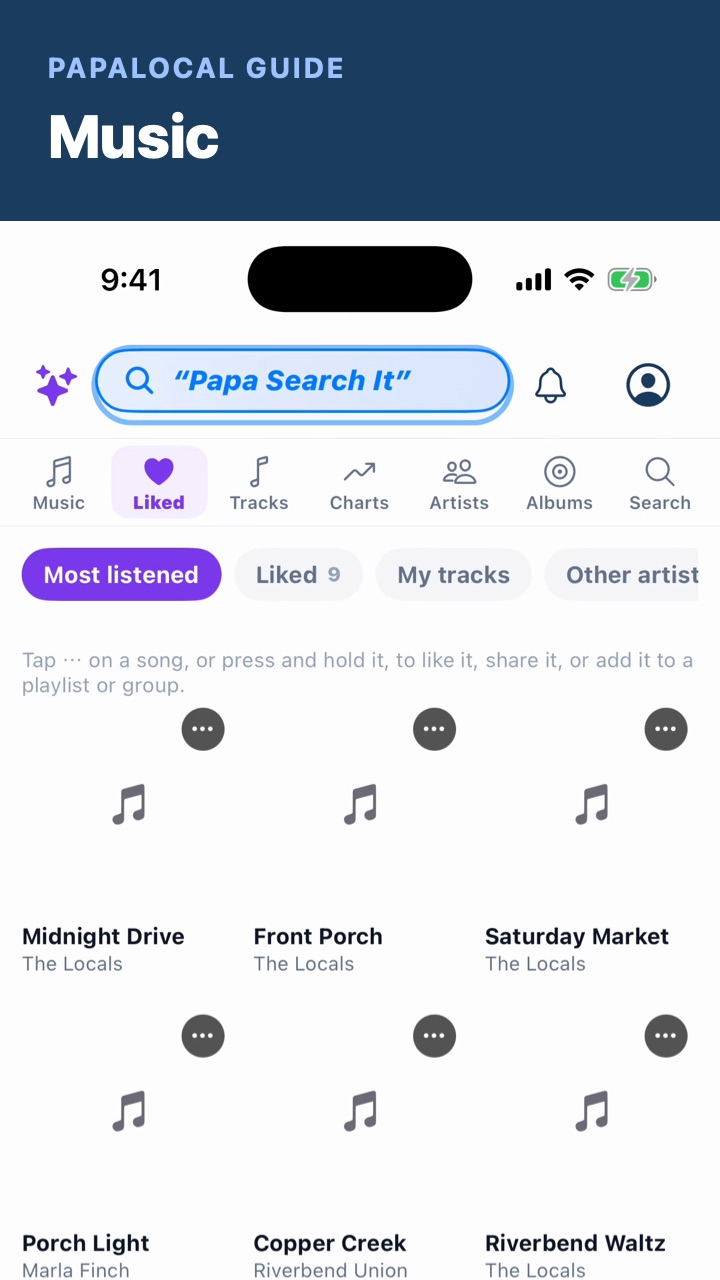 Music: listen, liked songs, make a song
Music Home, your liked songs, playlists and albums, an artist's page, and Studio for making your own songs.
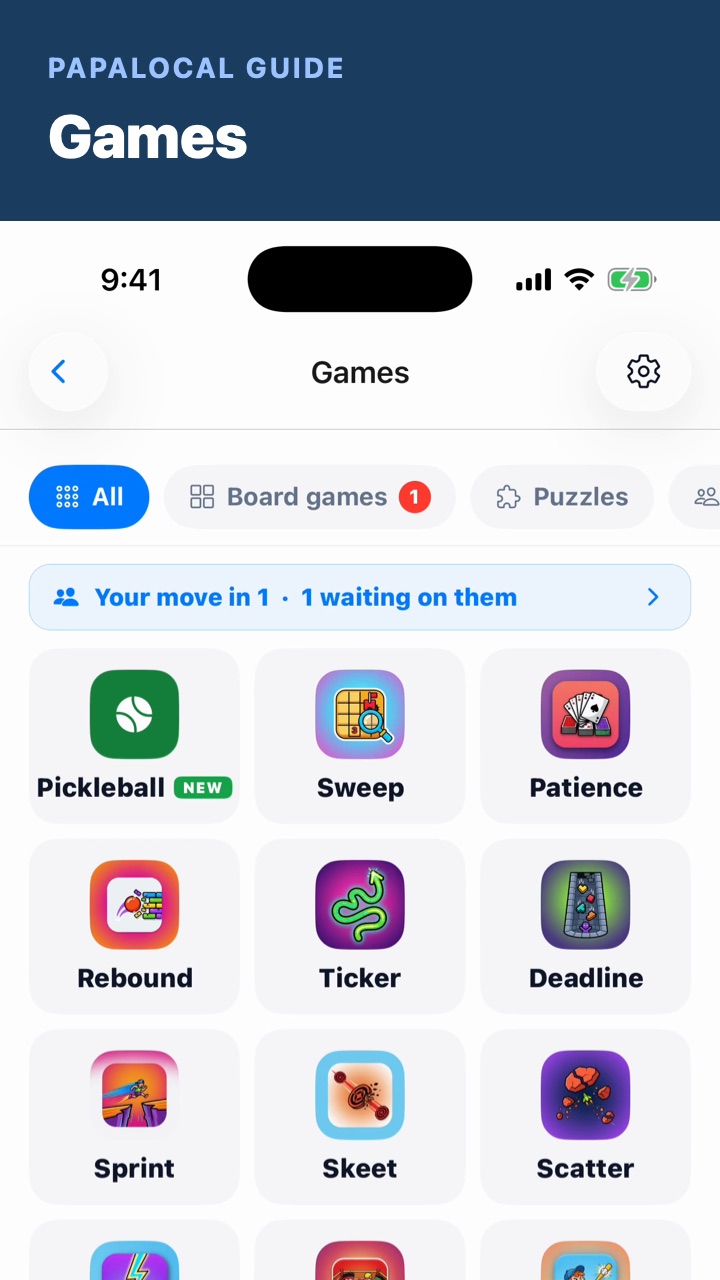 Games
Board games, puzzles, party and arcade games, whose move it is, and the play-time limit with a grown-up PIN.
Your town
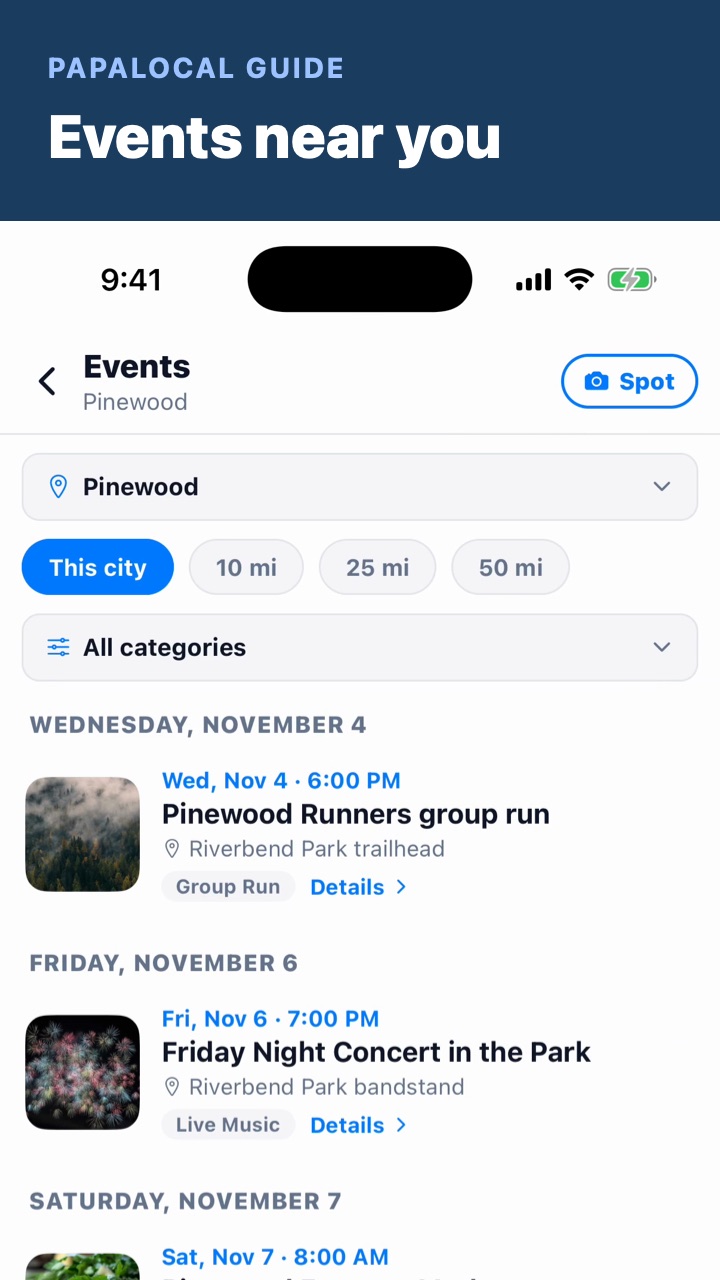
Your account
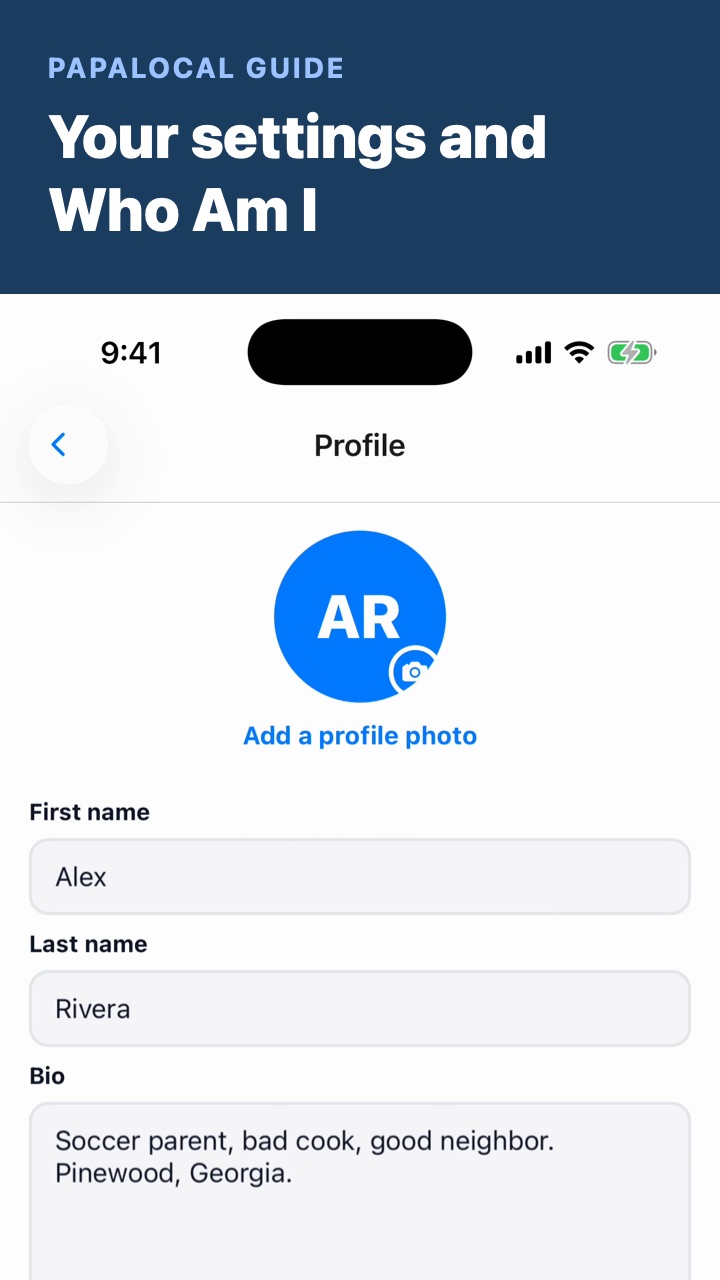
For your business
Get paid
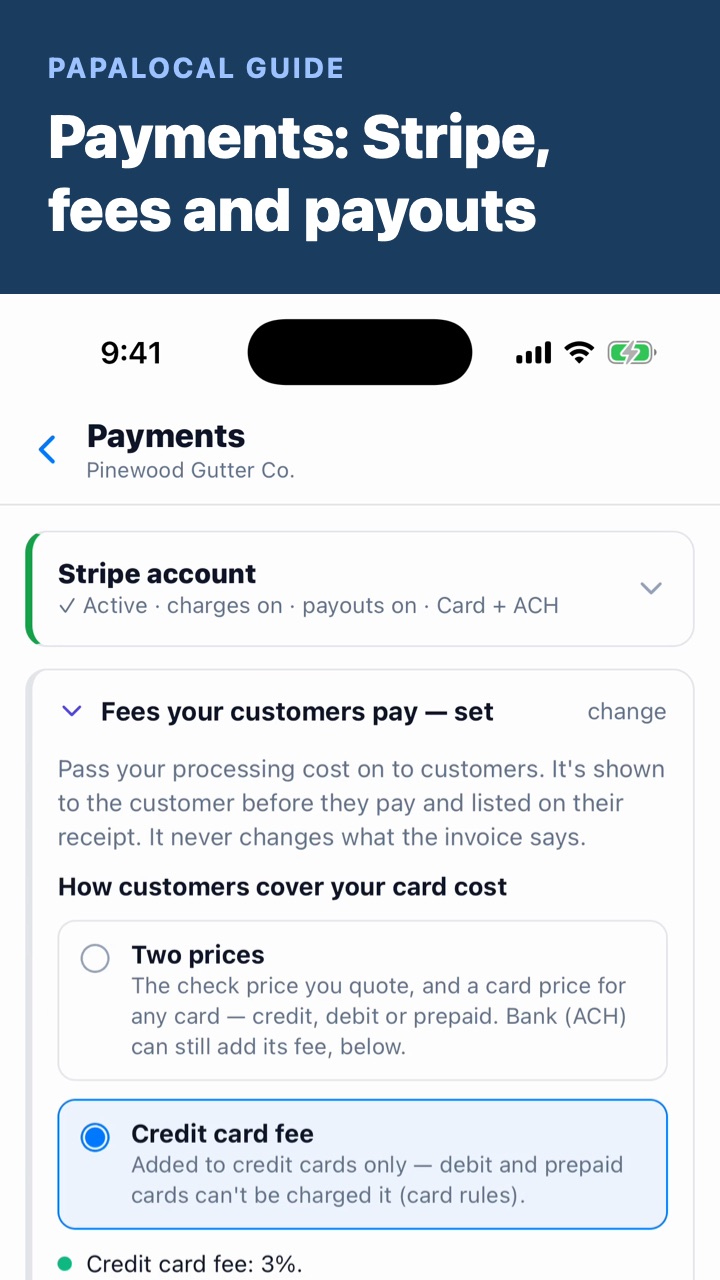 Payments: Stripe, fees and payouts
Connect your own Stripe account, read what came in and the fees (Papalocal's 1.25%, Stripe's), pass your card cost on to customers, and see each deposit.
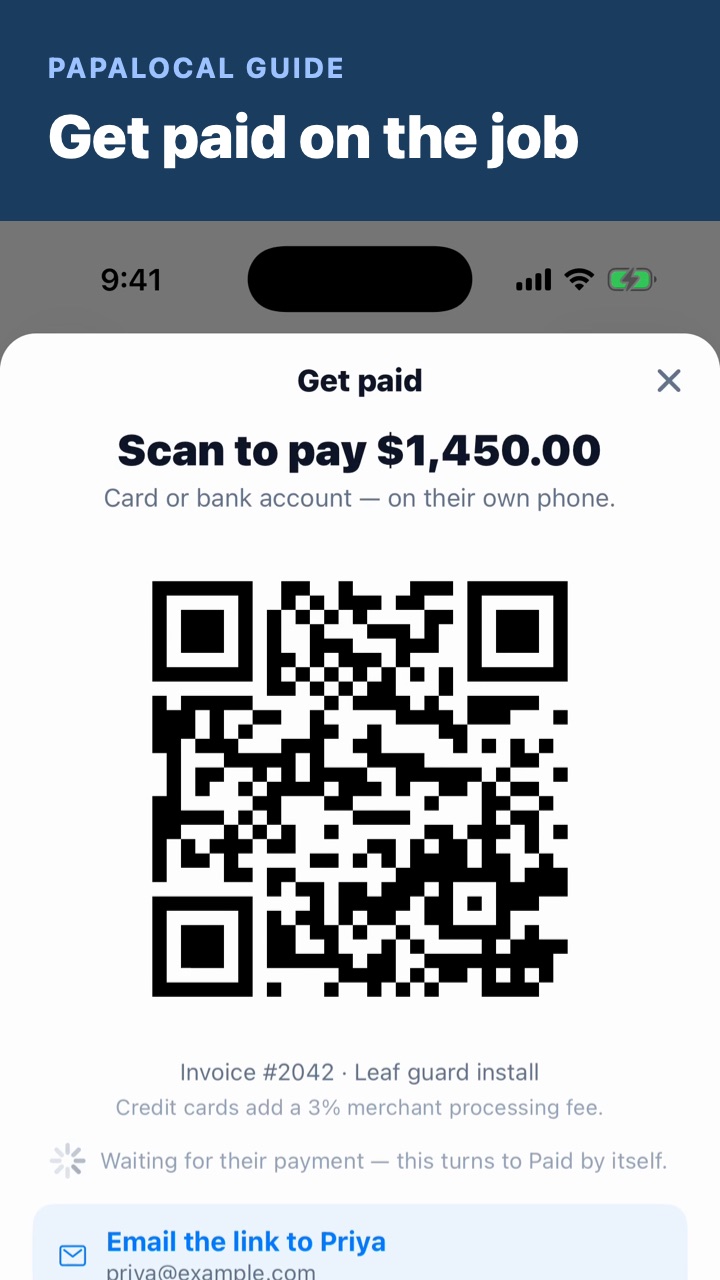 Get paid on the job
Get paid on a job: the customer scans the code and pays on their own phone, or gets the link by email or text; check or cash; it turns to Paid by itself.
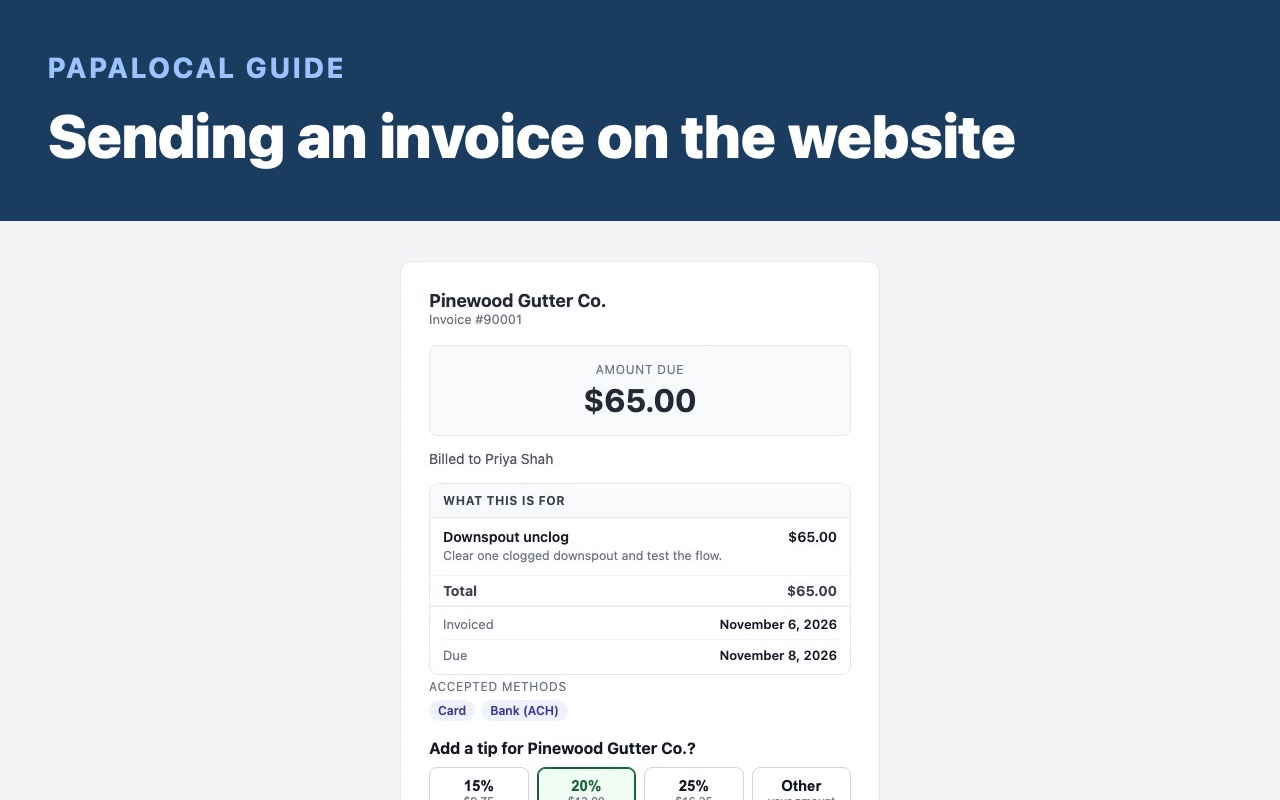 Sending an invoice on the website
Work → Invoices → New invoice: pick the customer, add what you did from your price list (the price and description fill in), set when it's due, make it recurring for regular work, and save. Open it to send it: Send invoice emails it with a Pay button, or text the pay link from your phone. Your customer sees every line and the total, and can pay right from the link.
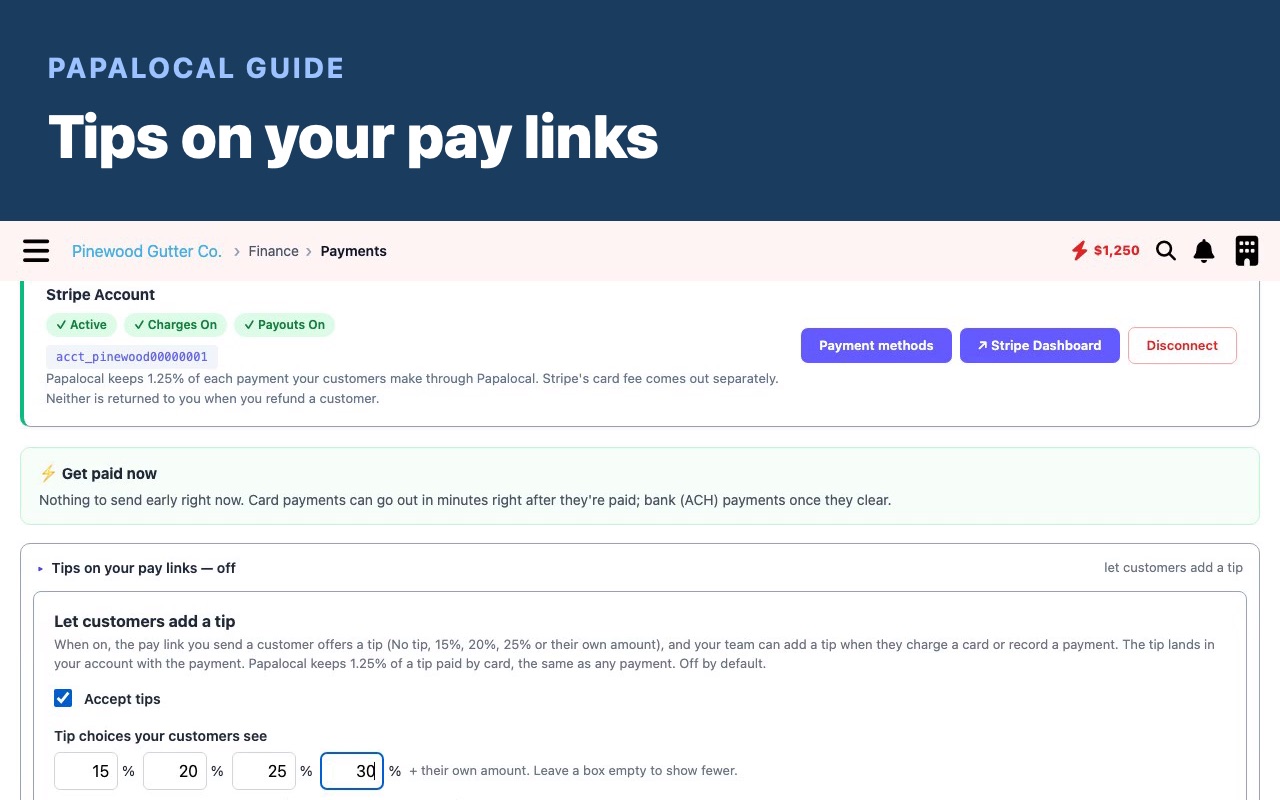 Tips on your pay links
Payments → Let customers add a tip: tick Accept tips, pick up to four amounts (they can always type their own), choose which one is picked when the pay link opens, and say who gets the tips: the business, or the person on the job. Save, and every pay link asks about a tip first; nothing is added unless your customer chooses it.
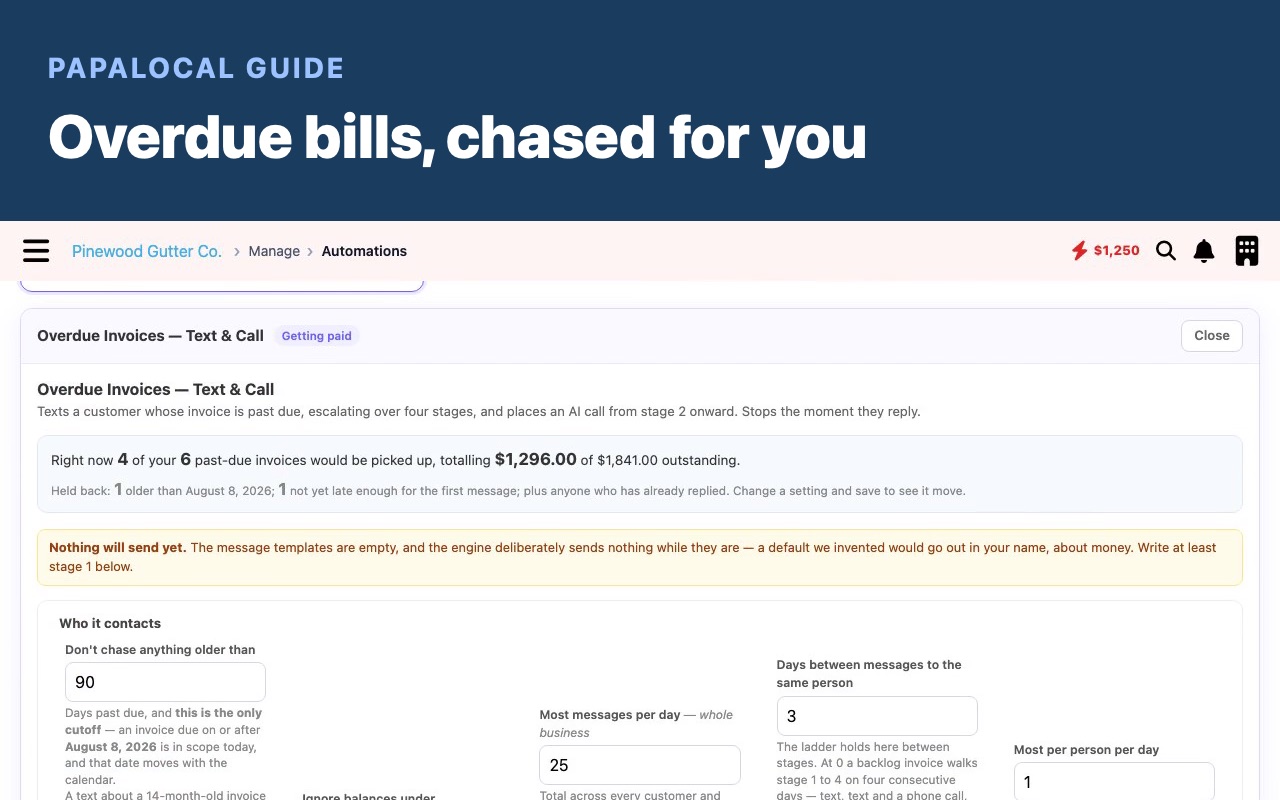 Overdue bills, chased for you
Manage → Automations → Overdue Invoices: see how many past-due bills it would pick up, set how far back to chase and what to ignore, write or draft the four messages, save, and turn it on. It stops the moment a customer replies.
Phone & texts
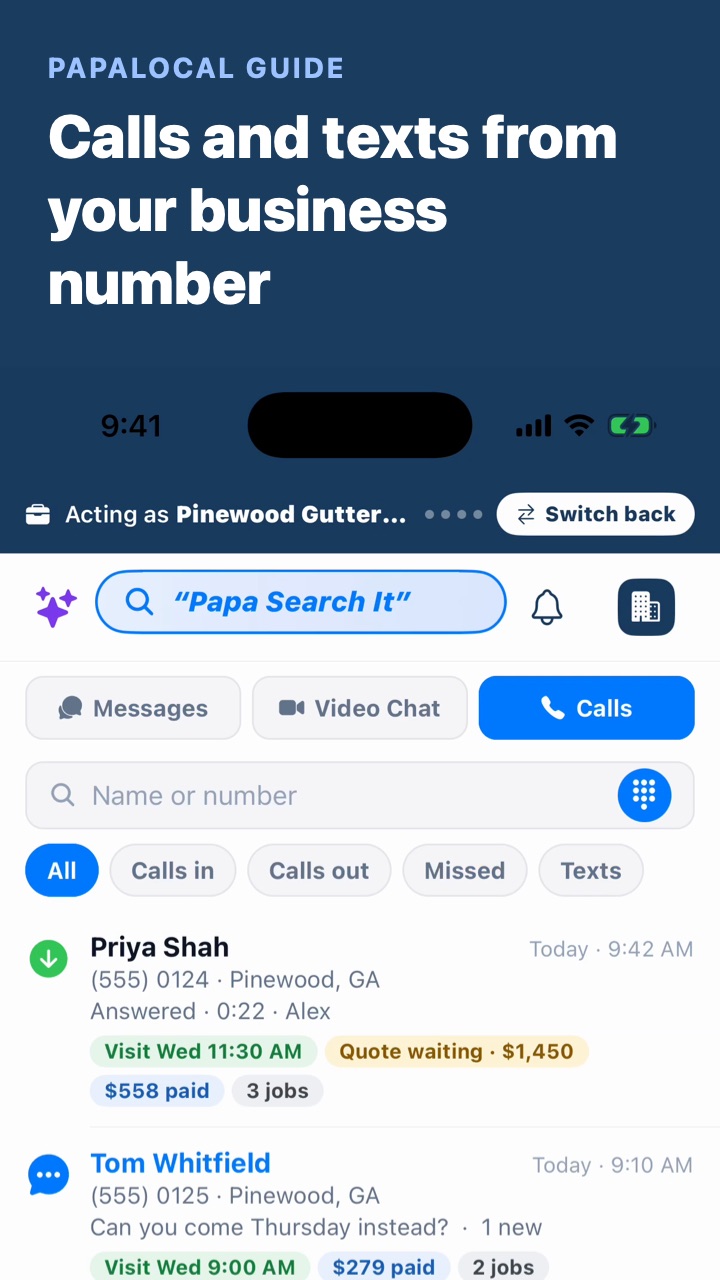
Win & do the work
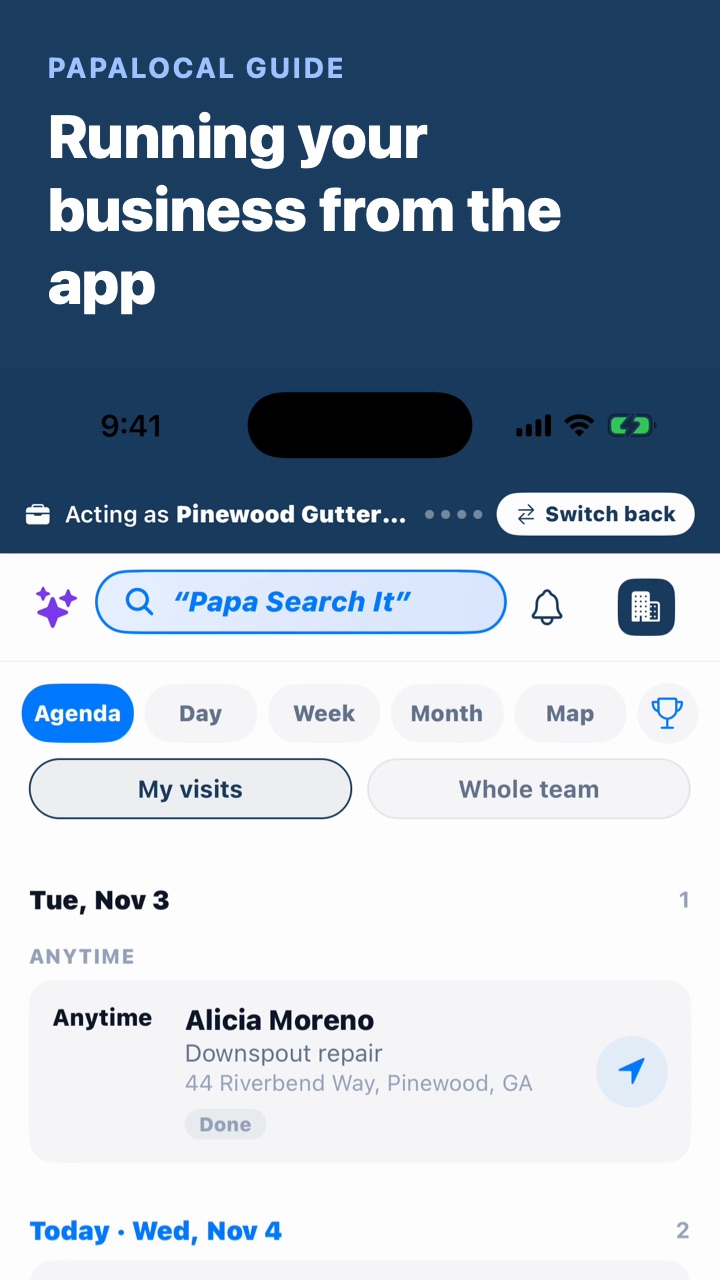 Running your business from the app
Act as your business, then Messages (Team, Customers, Businesses), Work with every job on the schedule, the plus's Work tools, and posting as your business.
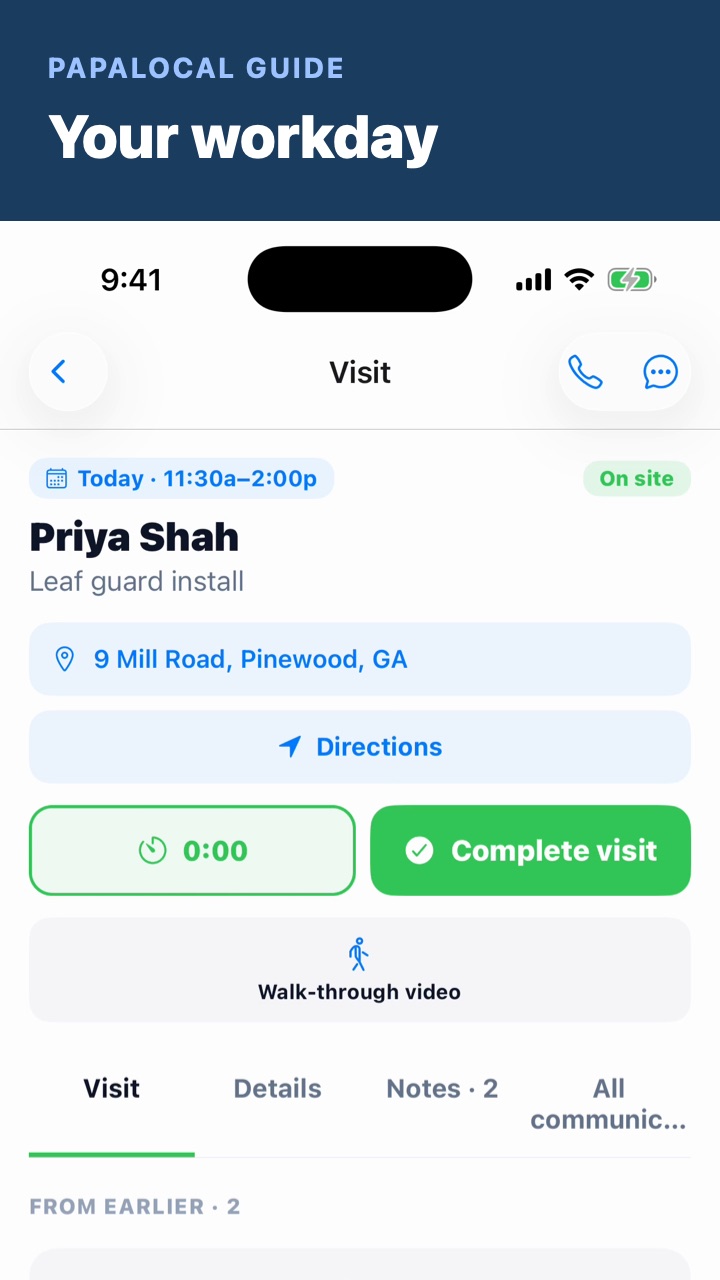 Your workday: a job from start to finish
Work, opening a job, On my way with its text, Arrived and Start timer, then Complete visit and what it sends.
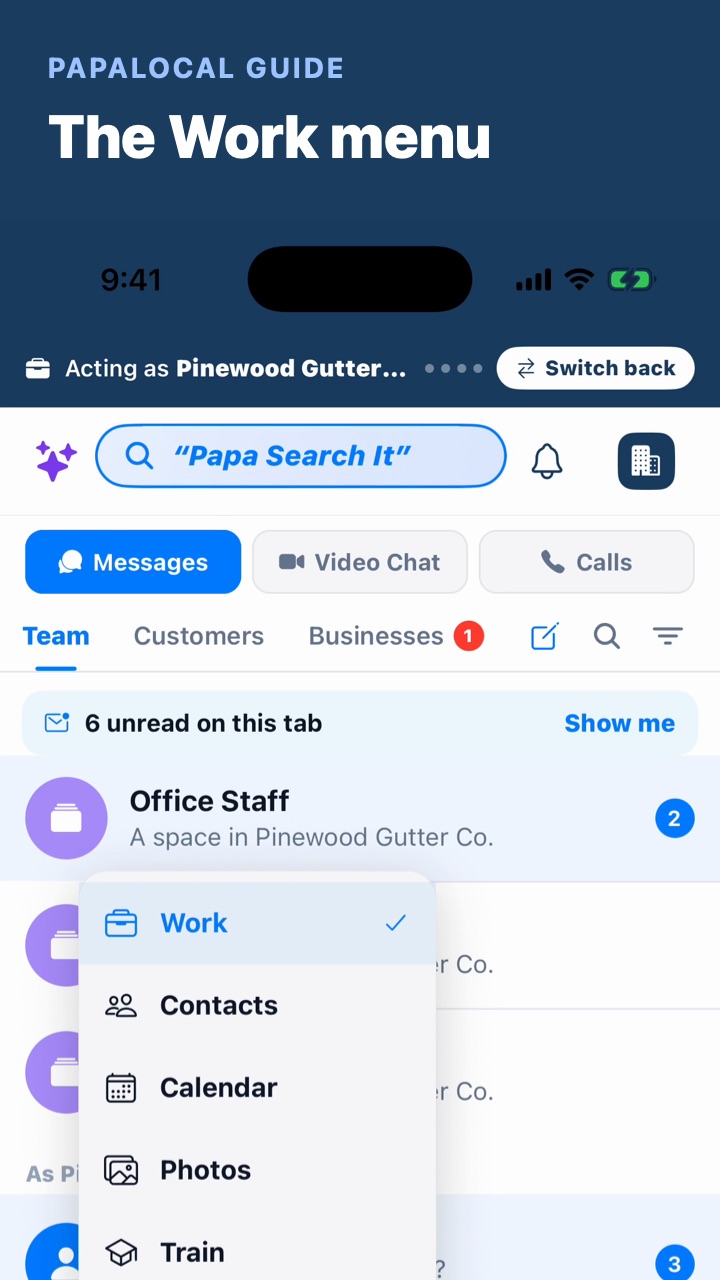 The Work menu: everything for your business
As your business, the icon left of the plus opens the Work menu: Work, Contacts, Calendar, Photos, Train, Dashboard, Payments and Manage business. Pick one and it opens (here, Contacts); the icon then shows it; Edit this list chooses what's on it.
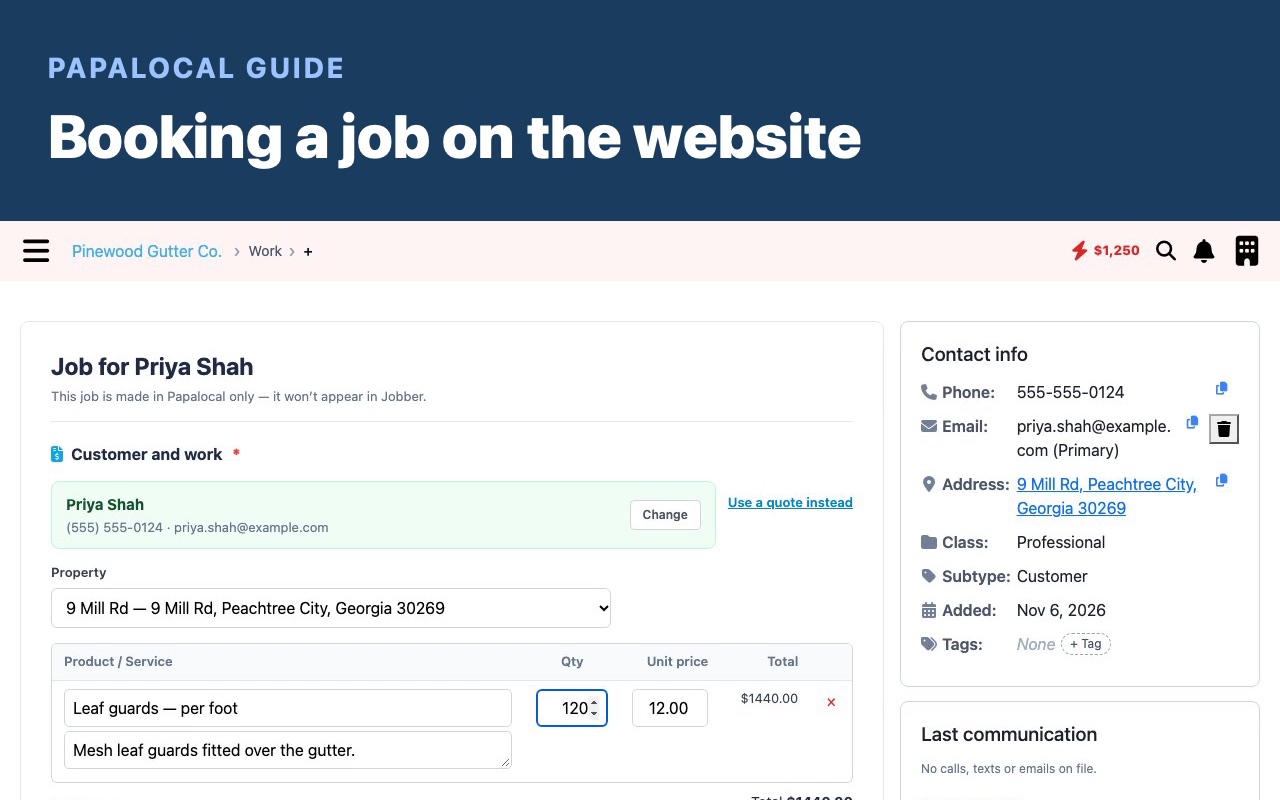 Booking a job on the website
Work → Jobs → New job, with no quote: pick the customer (their phone, address and history show beside the job), pick the work from your price list and the price fills in, choose one-off or recurring, the day and the time, put someone on it, leave the lane on Automatic, choose when to bill it, and save. Back on Jobs it's counted, and it's on the schedule the day you chose.
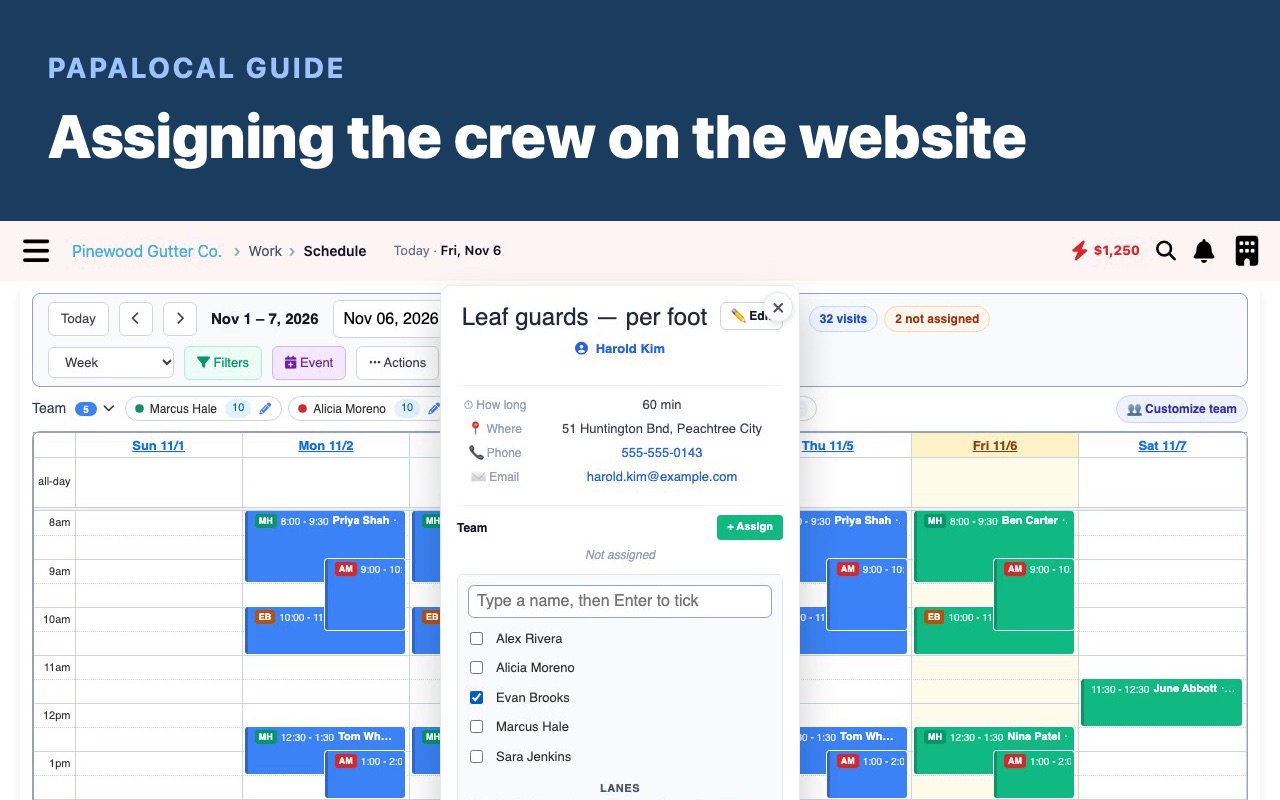 Assigning the crew on the website
Your schedule says at the top how many visits have nobody on them. Click one, click Assign and tick who's going (or type a name), leave its lane on Automatic so your lane rules place it, and save: their initials show on the visit. Unassign takes someone off.
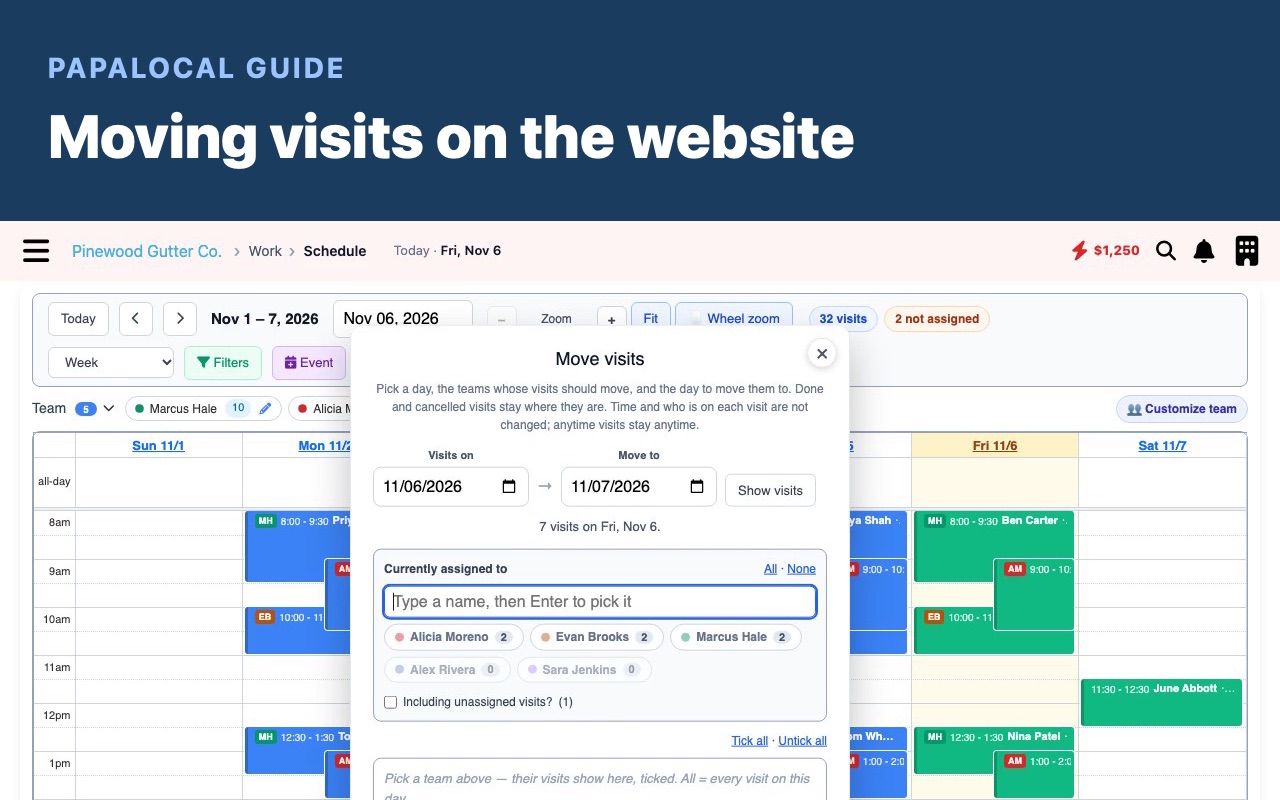 Moving visits on the website
Drag a visit on your schedule to another day, or up and down to change its time; it saves the moment you let go. To move a whole day for someone: Actions → Move visits, pick the day, whose visits, and the day they move to, then move them all at once.
 Sending a quote on the website
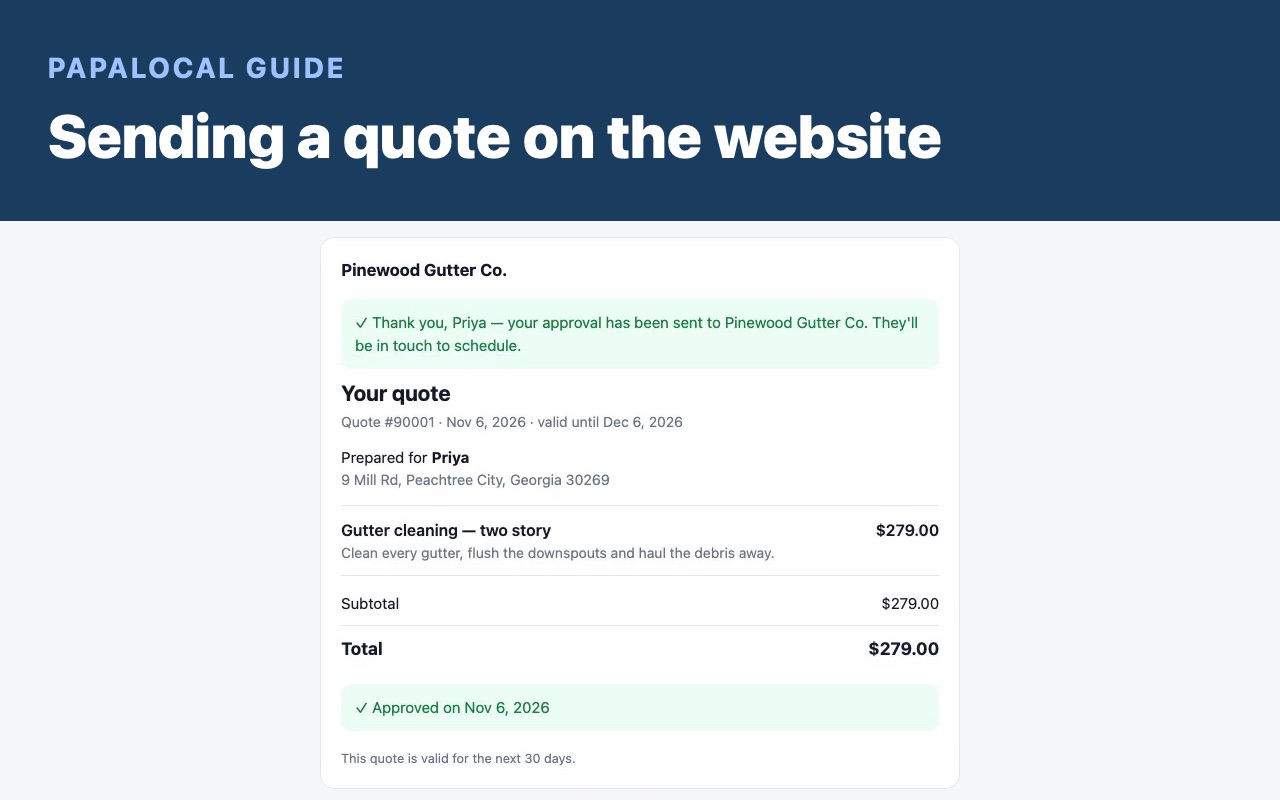
Work → Quotes → New quote: pick the customer (their address fills in as the project location), add the work from your price list and the price fills in, add lines, a discount, tax or a deposit if you need them, and save. Send it by email or text: either carries a link your customer opens without signing in, sees the work and the price, and approves with one click. Back on your quote it's marked accepted, and Create Job turns it into a job.
 Lanes: see the work coming
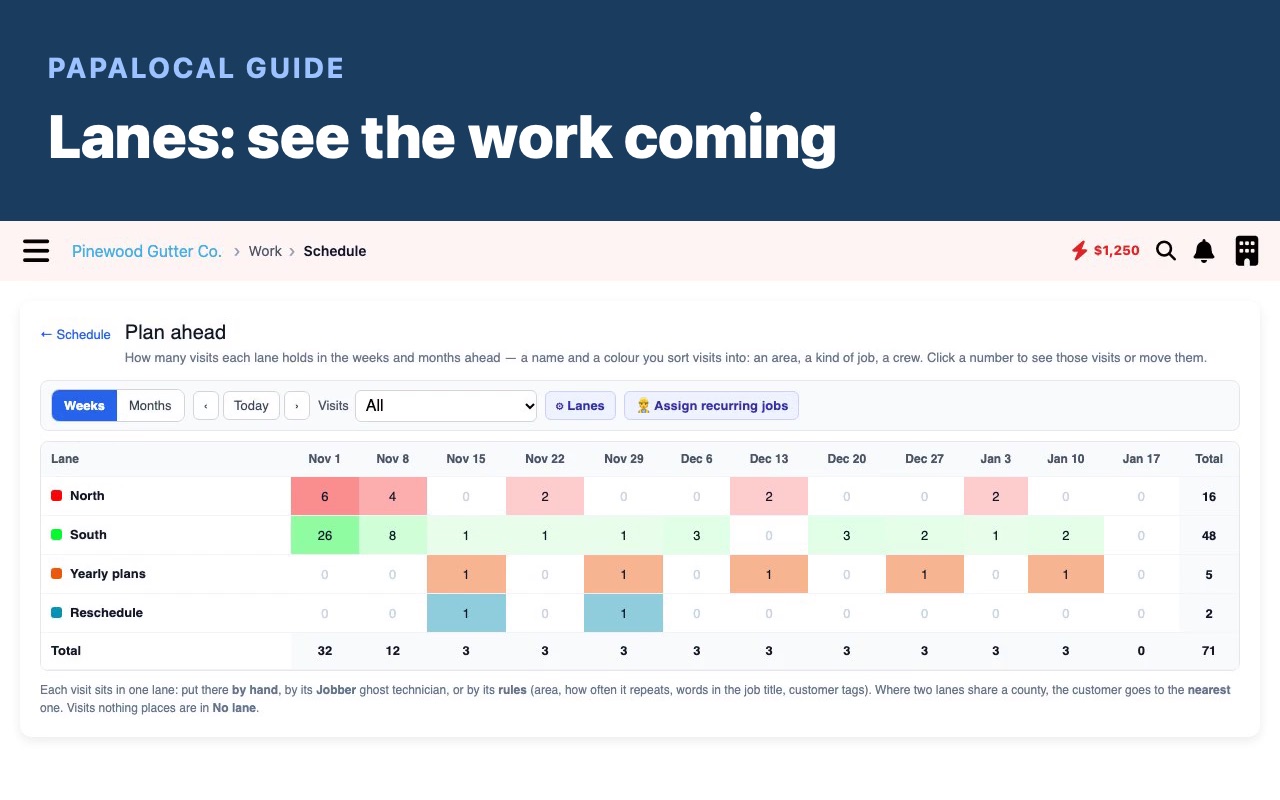
Schedule → Plan ahead: each lane (an area, a kind of job, a crew) shows how many visits it holds week by week or month by month. Click a number to see those visits and move them to another lane or back to automatic. ⚙ Lanes: call them lanes, crews, routes or areas; each lane's rules (area, ZIP codes, how often the job repeats, words in the title), a weekly capacity that turns busy weeks red, and the order lanes are checked in.
 Day by person: who's free, and when
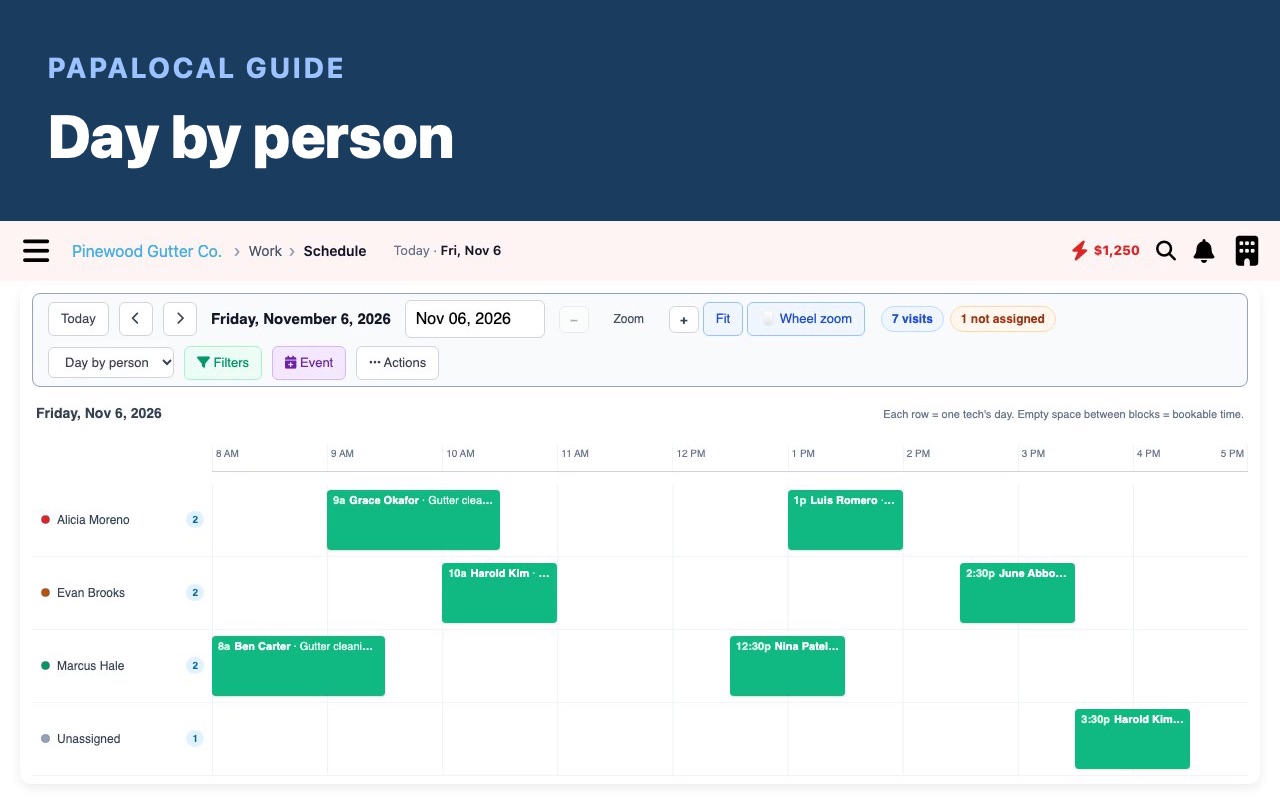
Schedule → Day by person: each row is one person's day, and the gaps between visits are time you can still book. Visits with nobody on them wait under Unassigned: click one, Assign, tick whoever has the gap, and save; it moves into their row.
 Quote templates: start every quote filled in
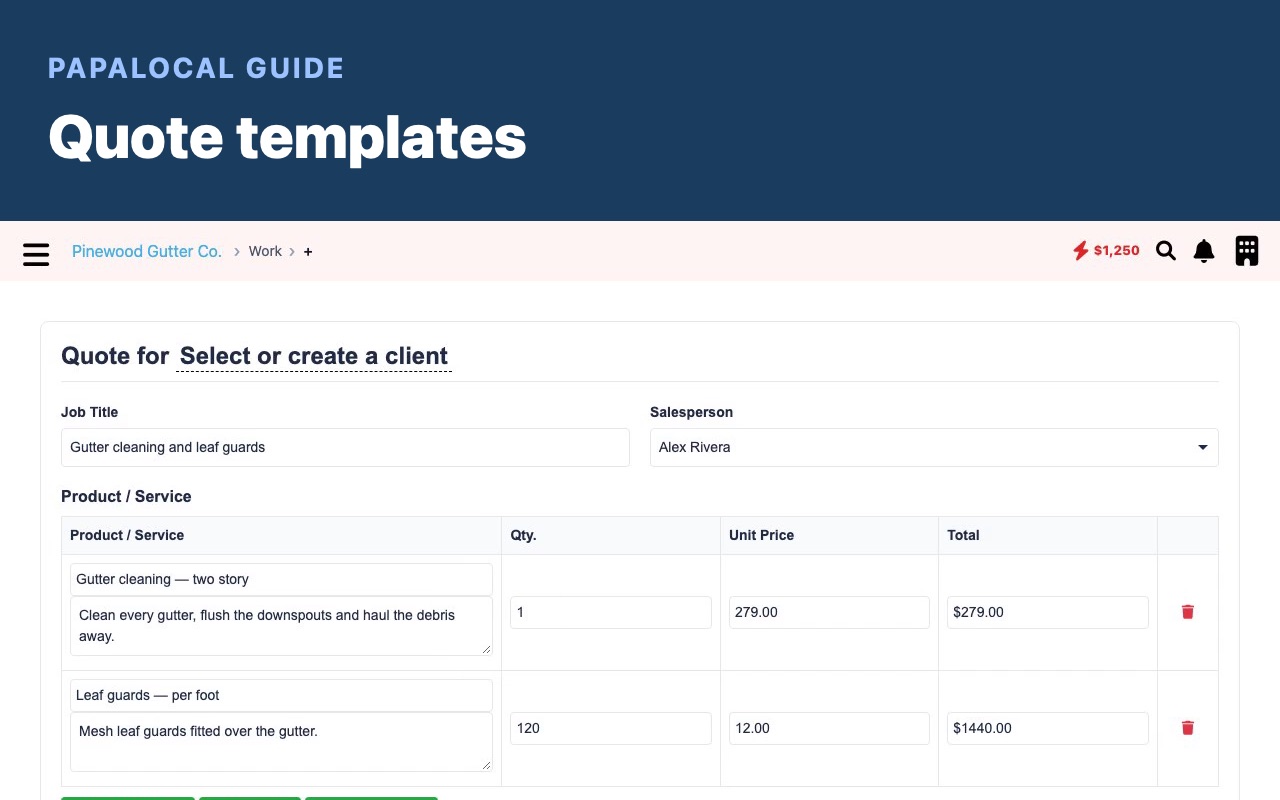
Quotes → Add quote template: name it, add the title and the message every customer should get, and the work from your price list. Save it, and New quote offers it first: pick it and the title, the message and the lines are already in.
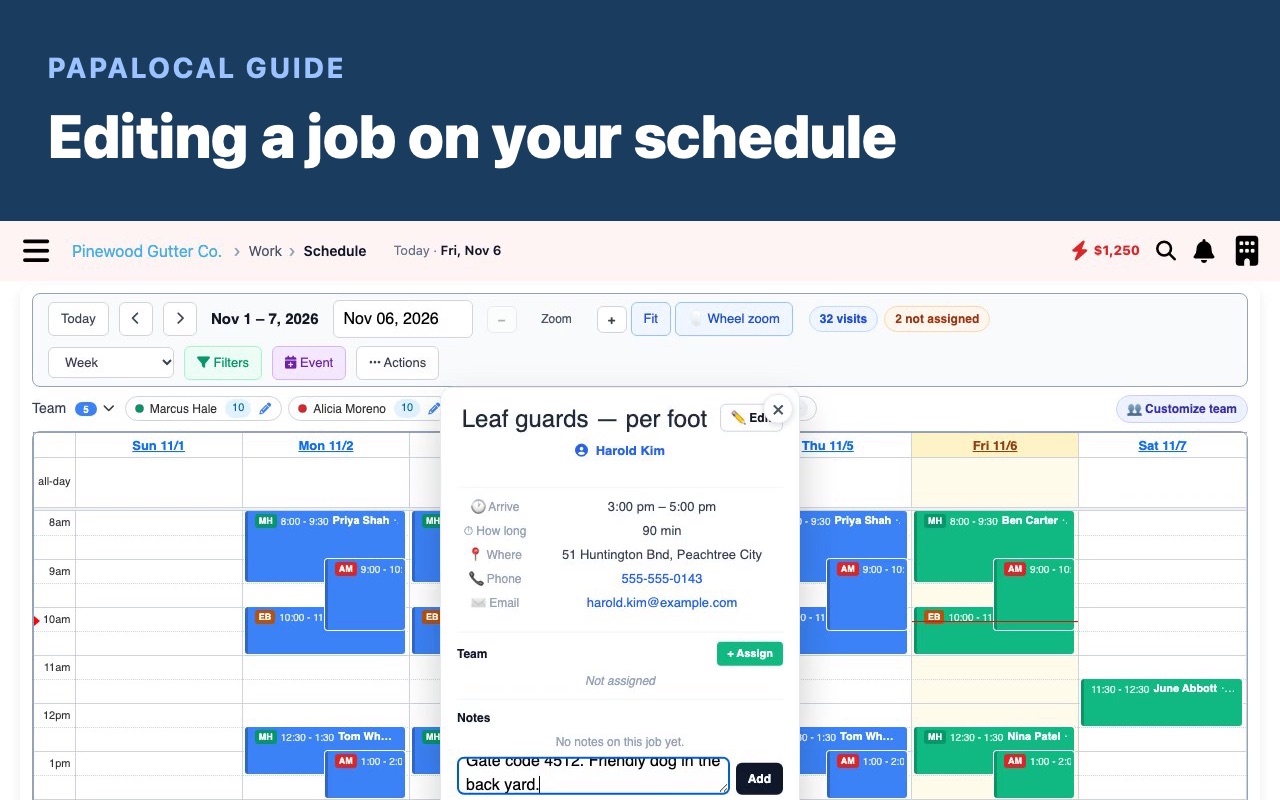 Editing a job on your schedule
Click a visit on the schedule, then Edit: set the arrival window you promised and how long the job takes, fix the address or the customer's number, and give it a colour so it stands out. Save, and it turns that colour on the schedule. Open it again to leave a note for whoever goes out, like a gate code or the dog.
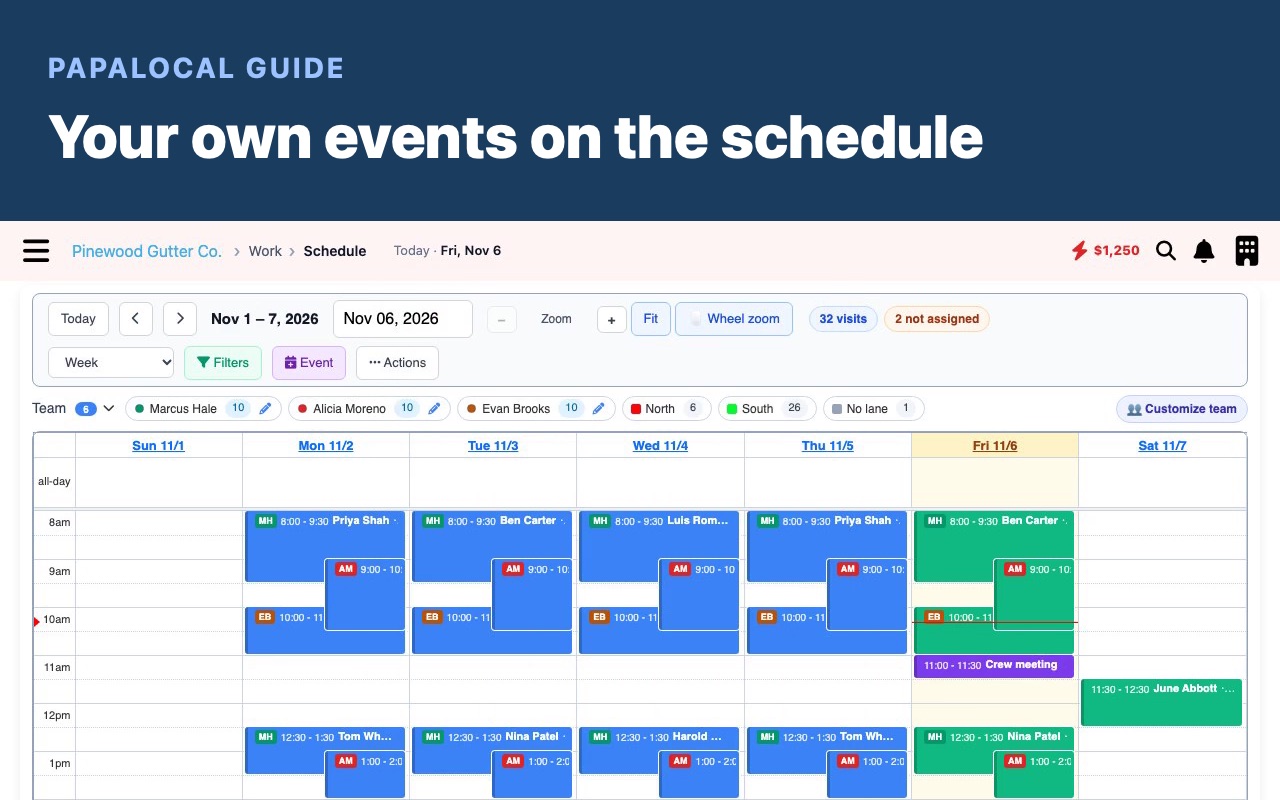 Your own events on the schedule
Schedule → Event: a meeting, a supply run or a truck in the shop. Give it a title and a type, set the day and the time, add any details, and Create event. It shows in purple beside your visits, so nobody books over it.
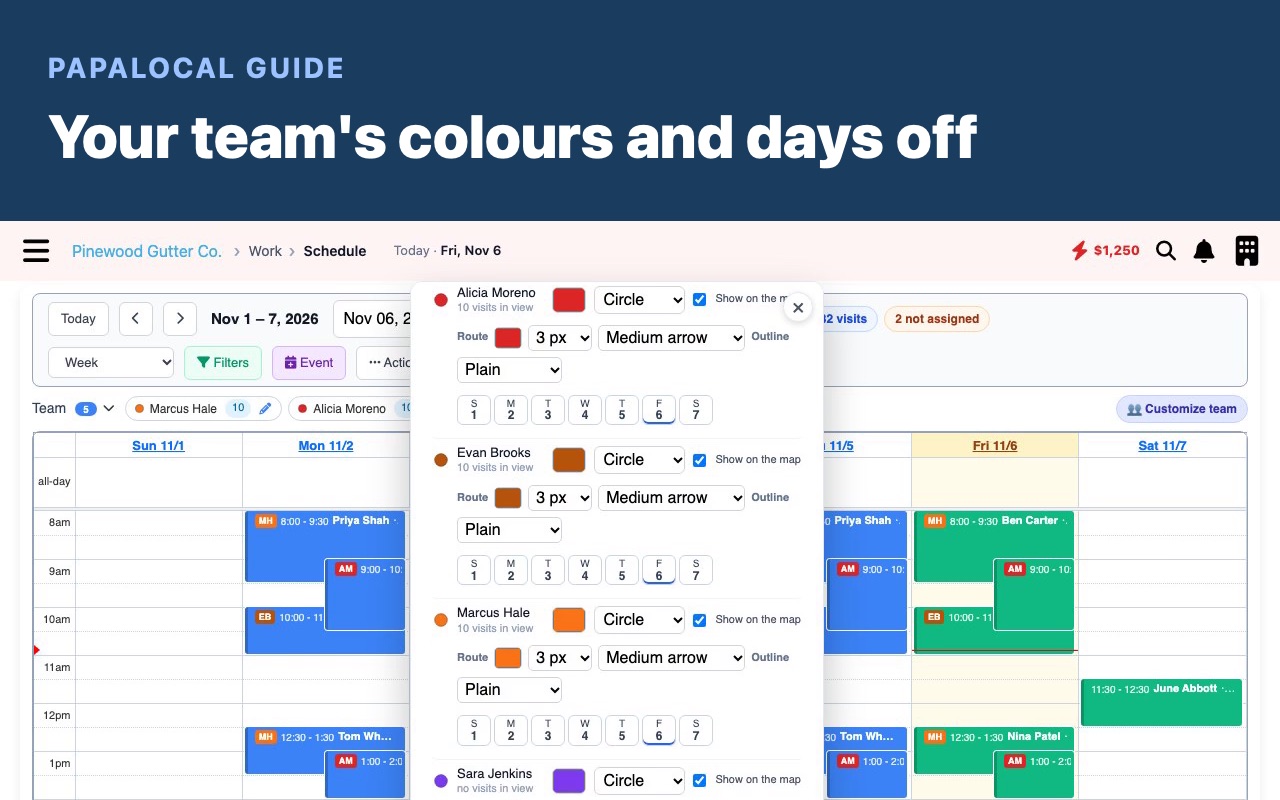 Your team's colours and days off
Schedule → Customize team: give each person their own colour and a pin shape for the map, and their visits change colour on the schedule straight away. Someone off for a day? Tap the day and no visit can be given to them; it shows at the top of the schedule as not working.
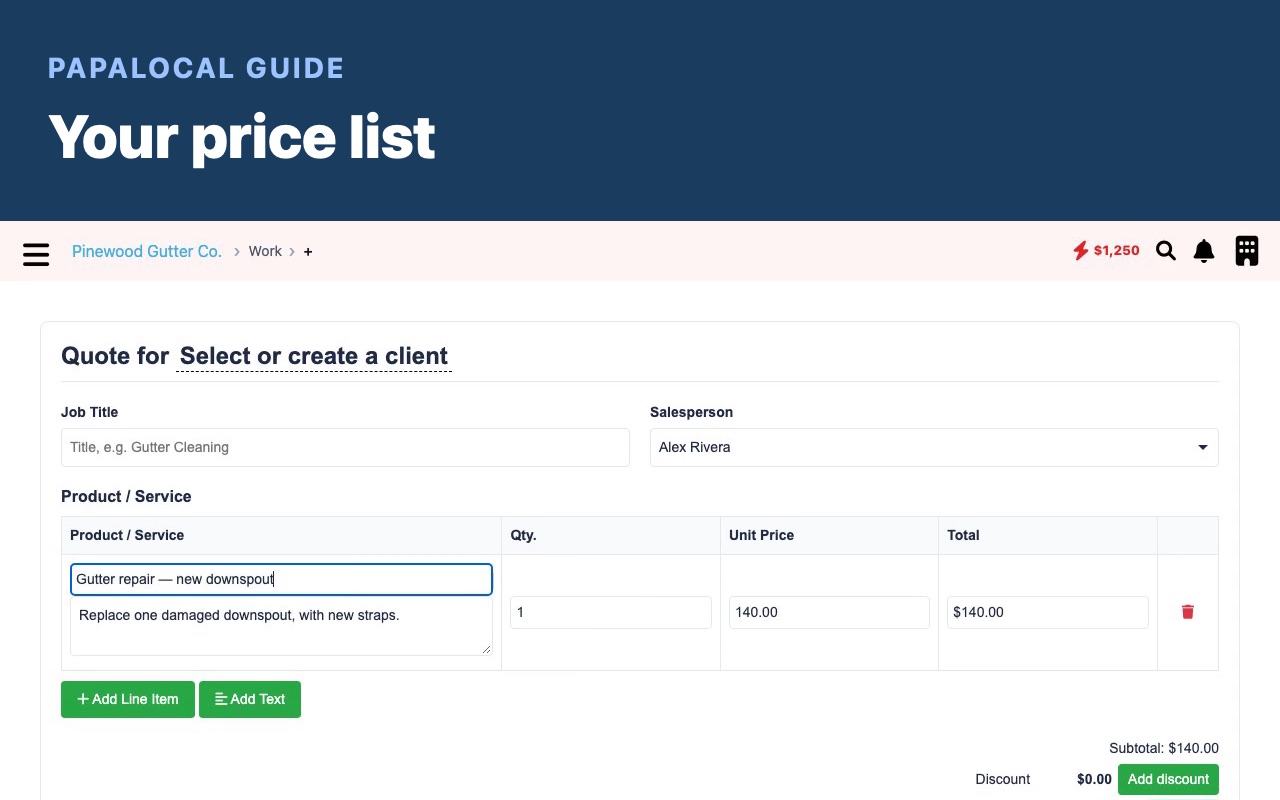 Your price list
Manage → Services → Your quote price list: add an item with its price, unit and words, change a price, and pick it on your next quote so nobody types a price twice.
Team & hiring
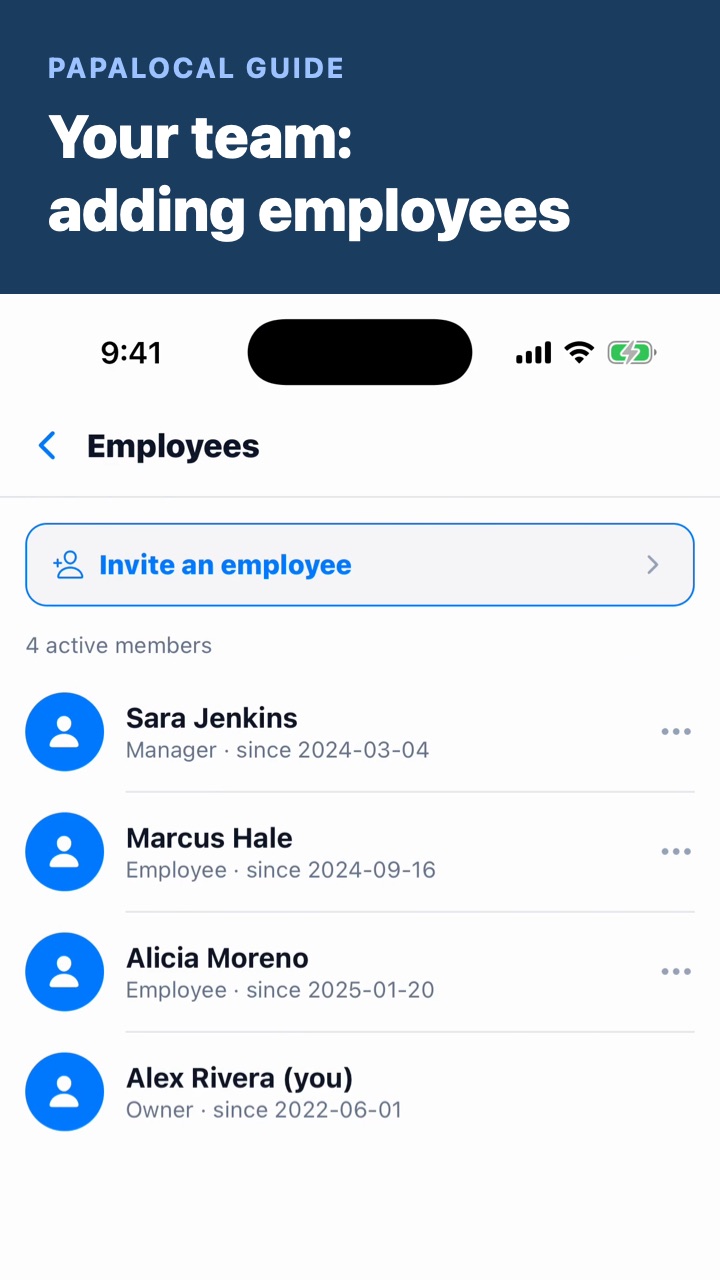 Your team: adding employees
Team: everyone who works here with their role, Invite an employee, and changing a role or ending employment.
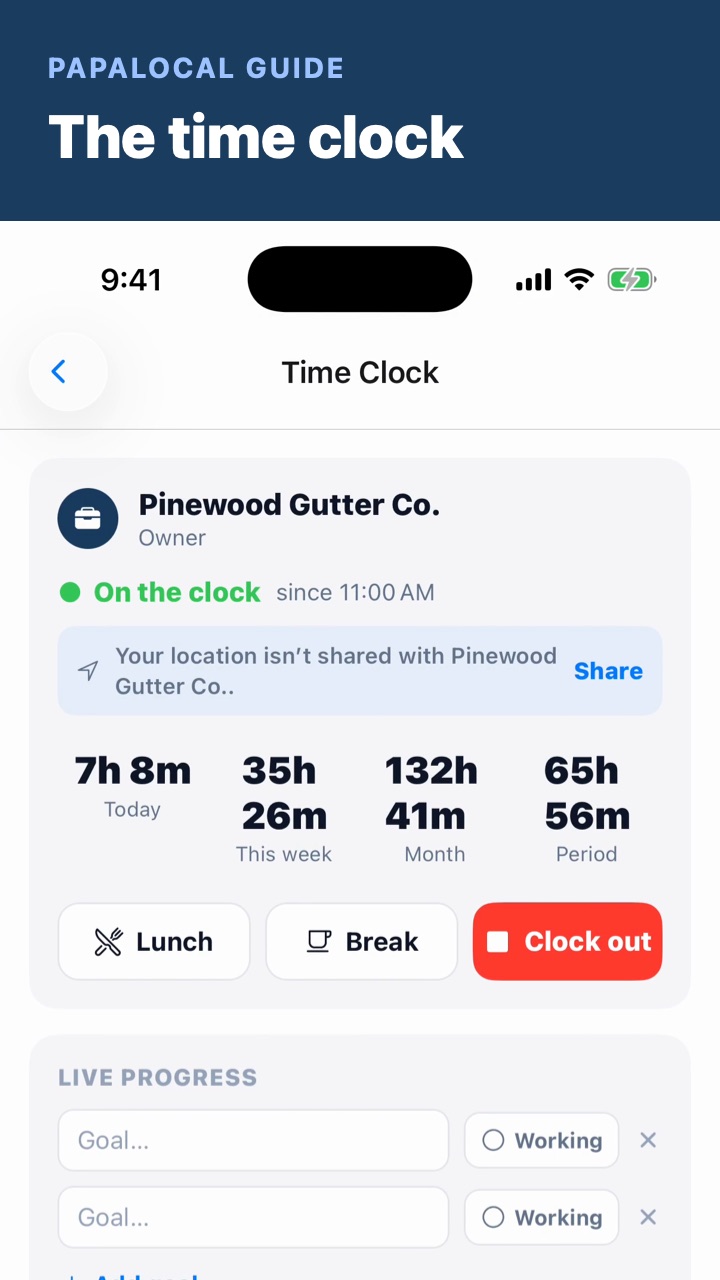 The time clock
Clock in from the plus (Work → Time clock), Lunch, Break and Clock out, then the owner's view: who's on the clock, a person's log, and payroll.
Your page & website
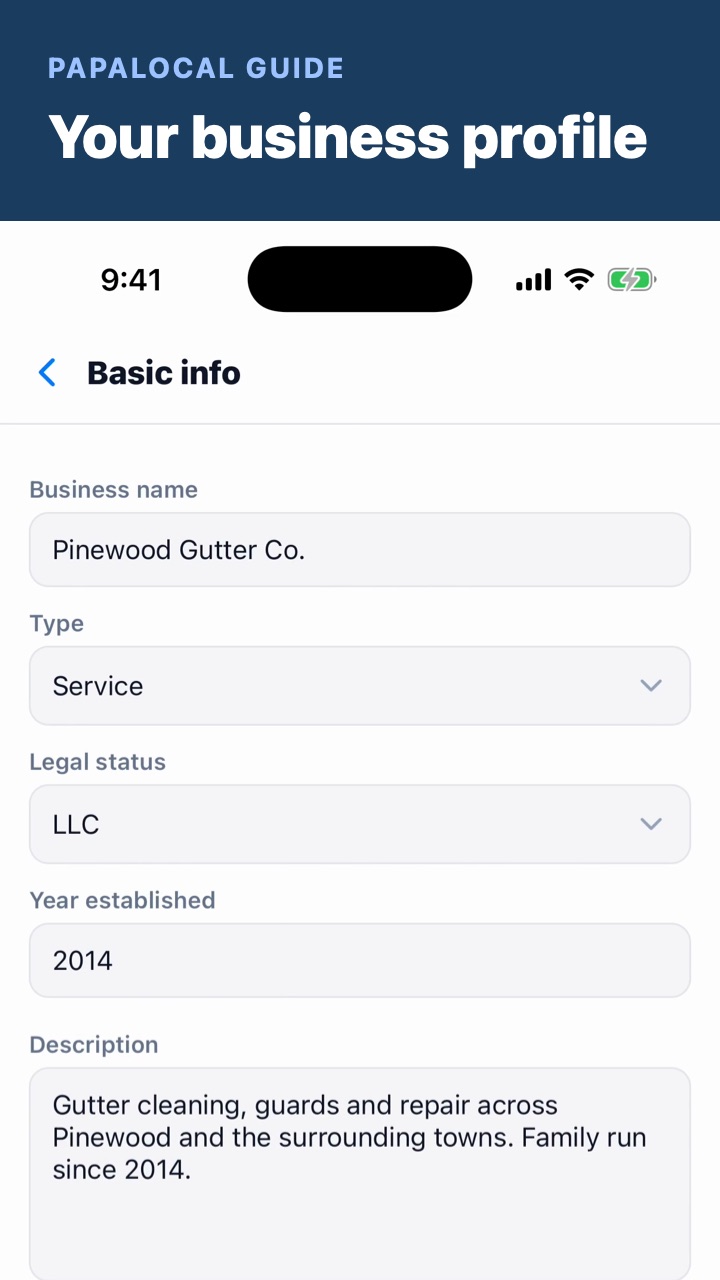
Reviews & Google
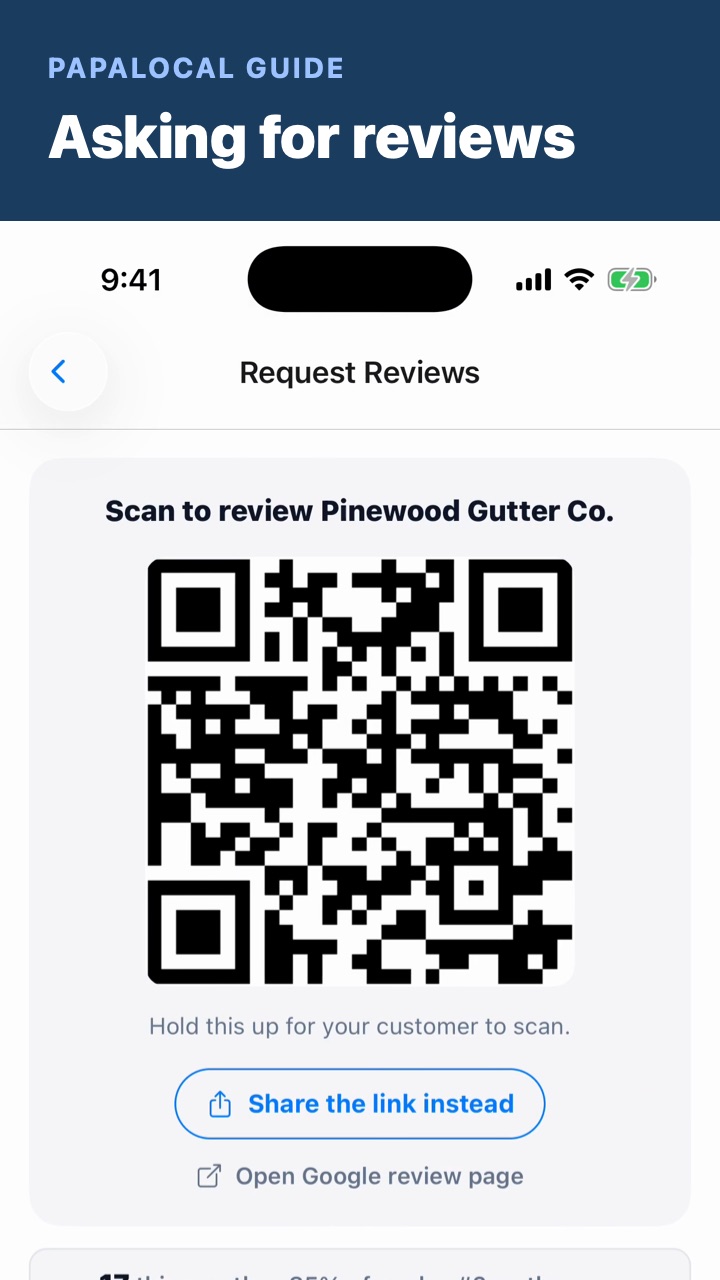 Asking for reviews
Request reviews: the code your customer scans, the link to share, or send it to their phone or email, and your count for the month.
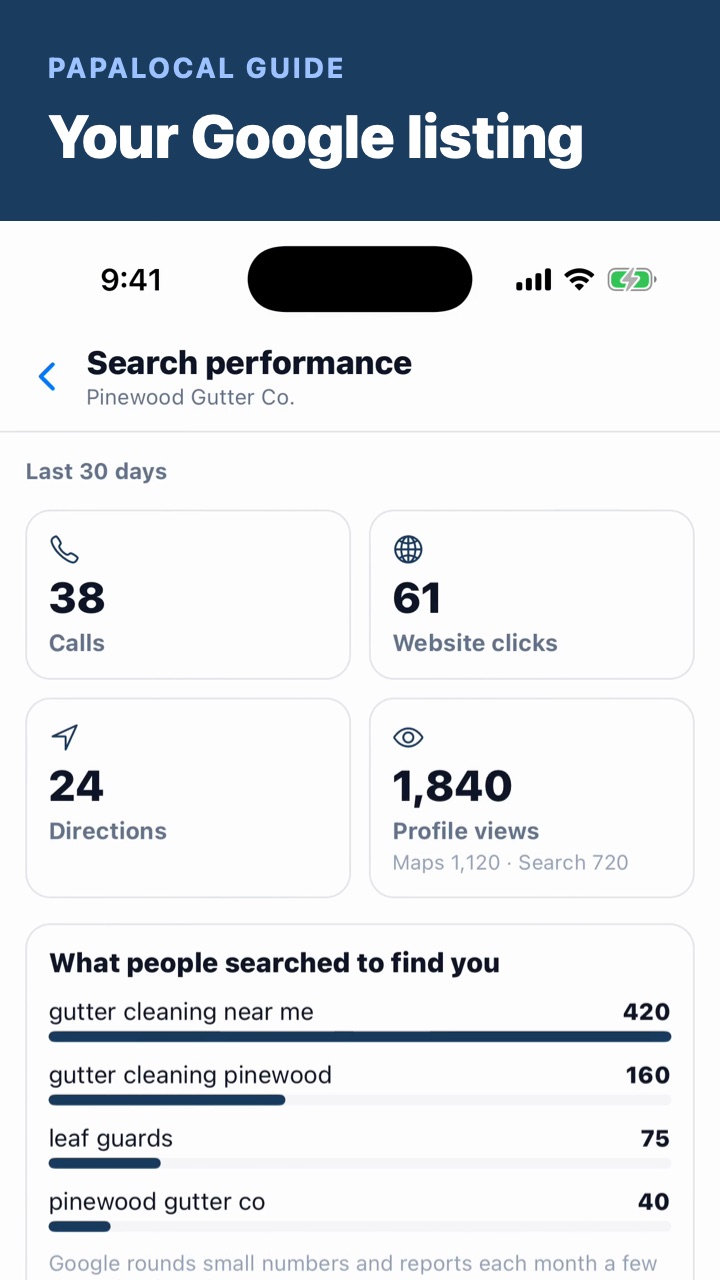 Your Google listing
Manage business → Google Business: your preferred listing, posts, search performance and Profile Watch.
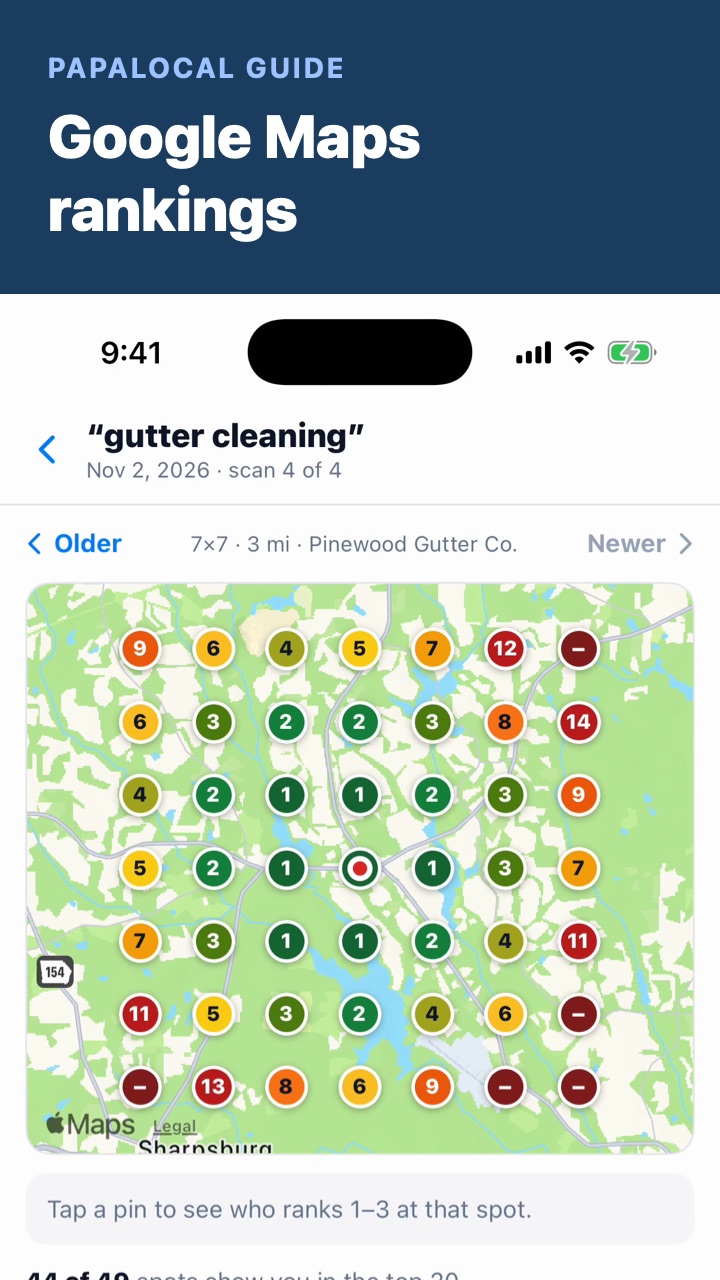 Google Maps rankings: where you show up
Manage business → Google rankings: each search you've mapped with what changed since the last scan; its map, a pin for each spot numbered with where you rank; who's first, second and third at a spot; who shows up across the map; the trend.
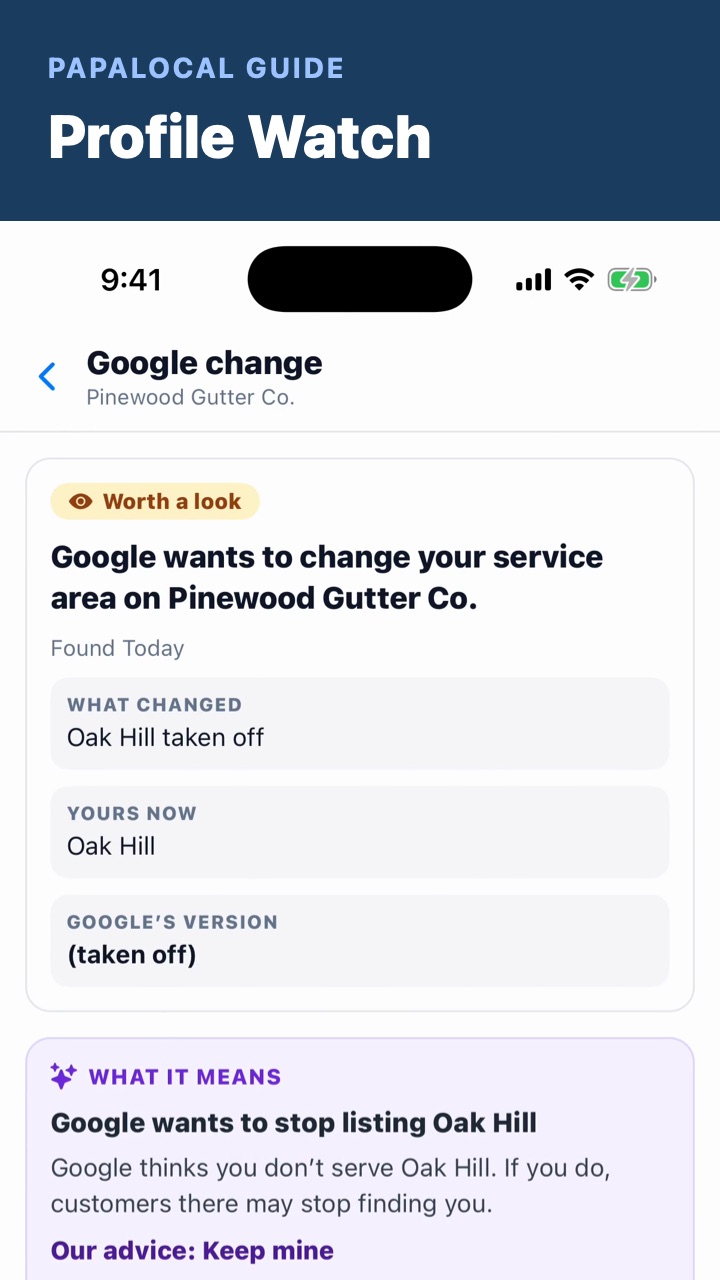 Profile Watch: know when your Google listing changes
Manage business → Profile Watch: Papalocal checks your Google listing for changes (name, phone, hours, address, categories and more); every change with how much it matters; one Google suggested, what the AI makes of it, and Keep mine · Use Google's · Leave it to Google.
Money & admin
For youth sports clubs
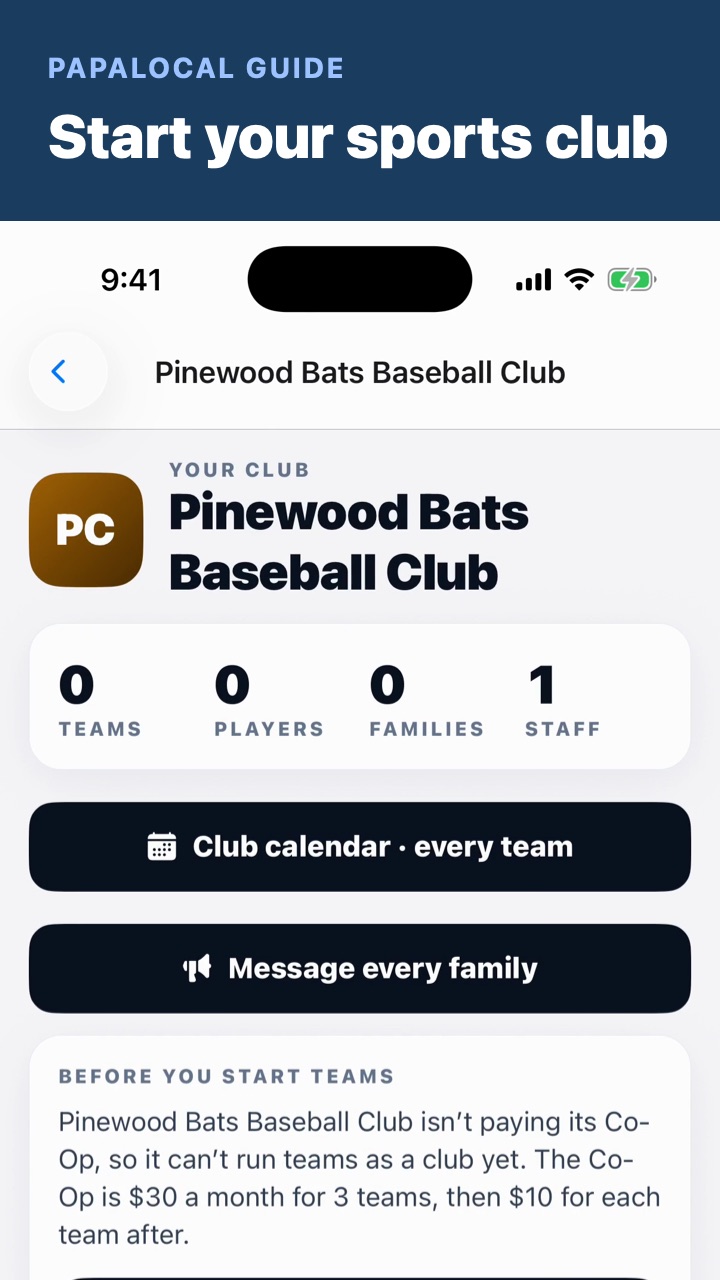 Start your sports club
Add Sports from the App Store, make your club from Start a team, join the Papalocal Co-Op, start your teams, and connect the club's own Stripe account so families can pay.
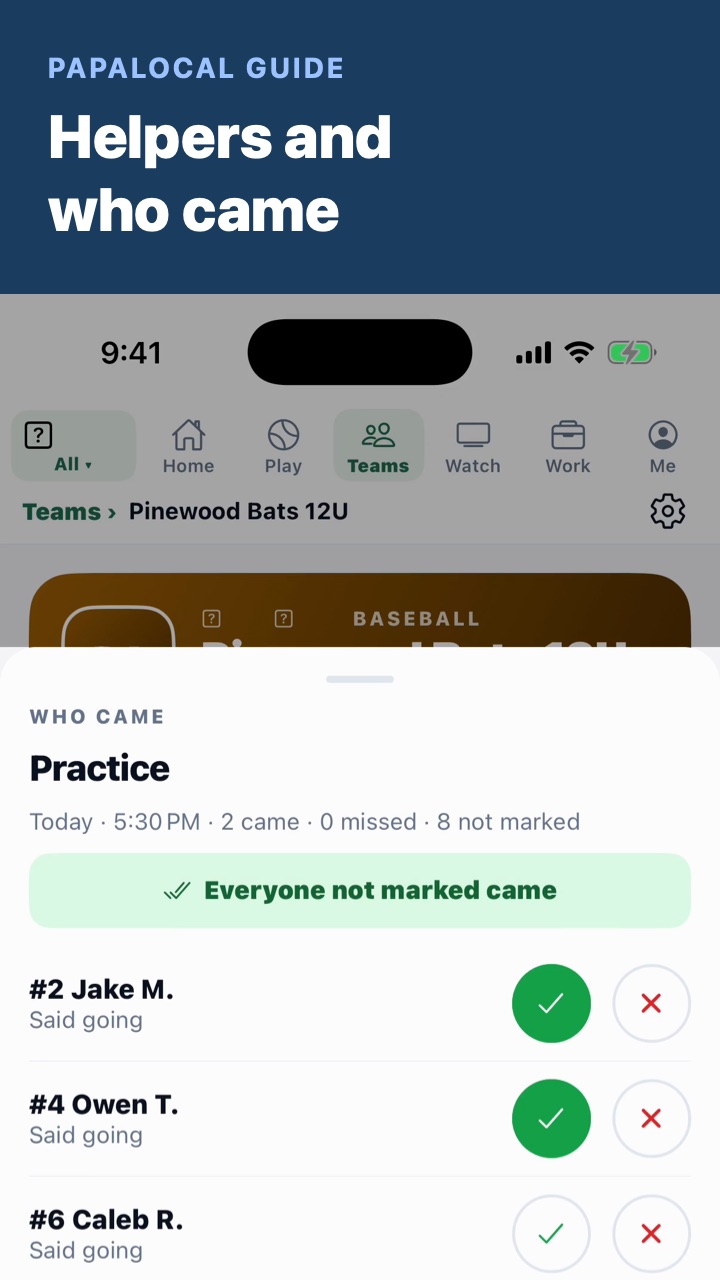 Helpers and who came
Put snacks and a scorekeeper on every game in one tap, let families take a job, see who has helped, then mark who came to practice and see each player's season.
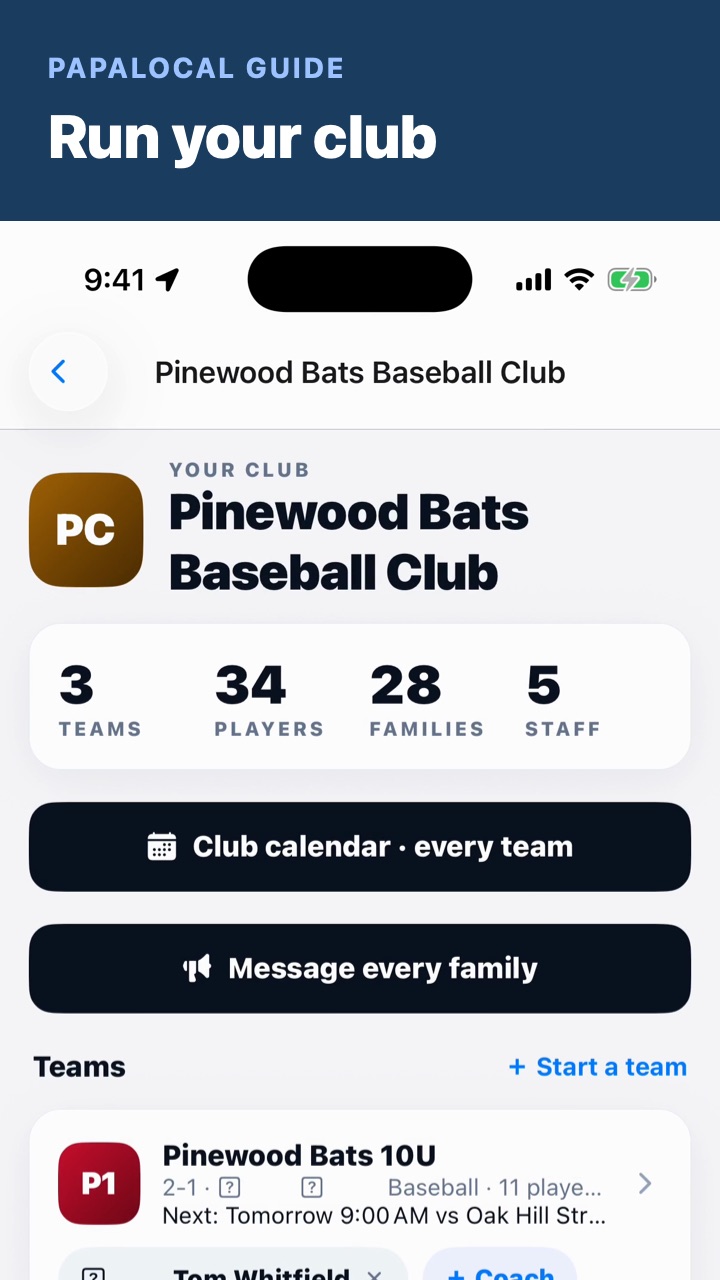 Run your club
Every team with its record and next game, coaches put on from your staff, each team's join link, the club calendar with a double-booked field in red, one message to every family, and the club's plan and money.
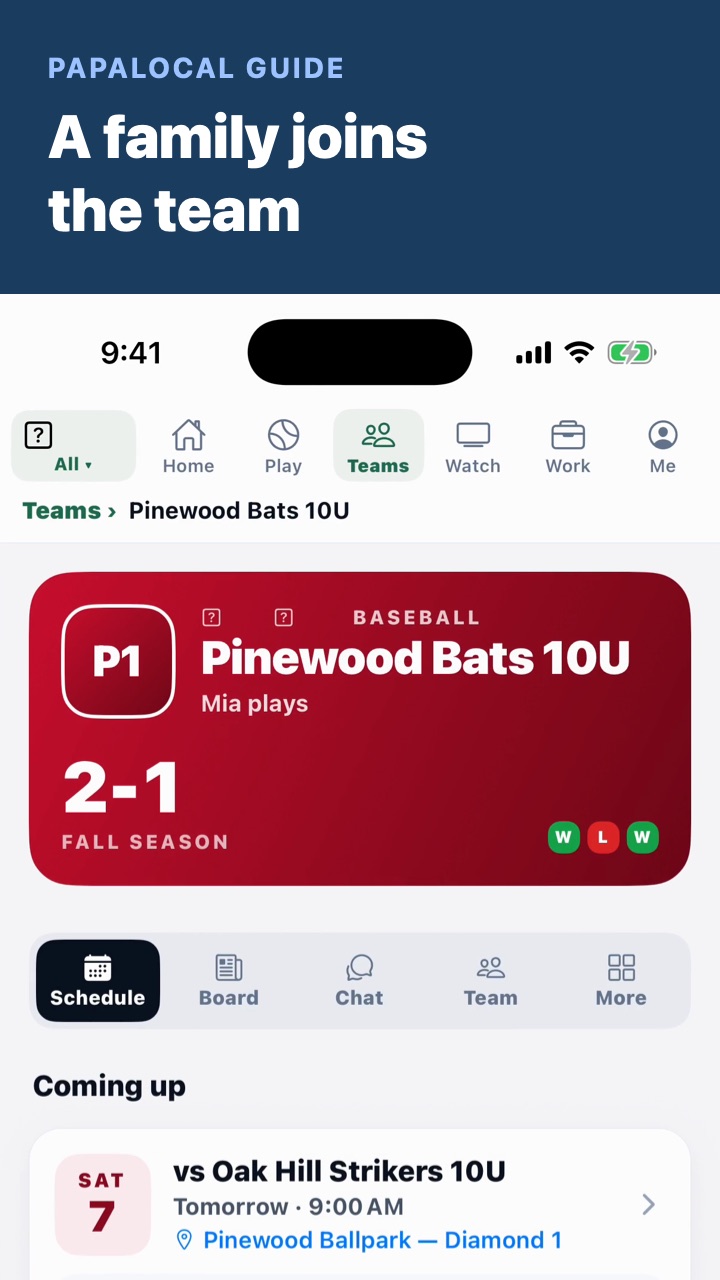 A family joins the team
Tap the coach's link to join on the web, or use Join with a code in the app. Pick your kid, say who's going on the schedule, and finish the registration checklist: forms, emergency card, uniform size and fees.
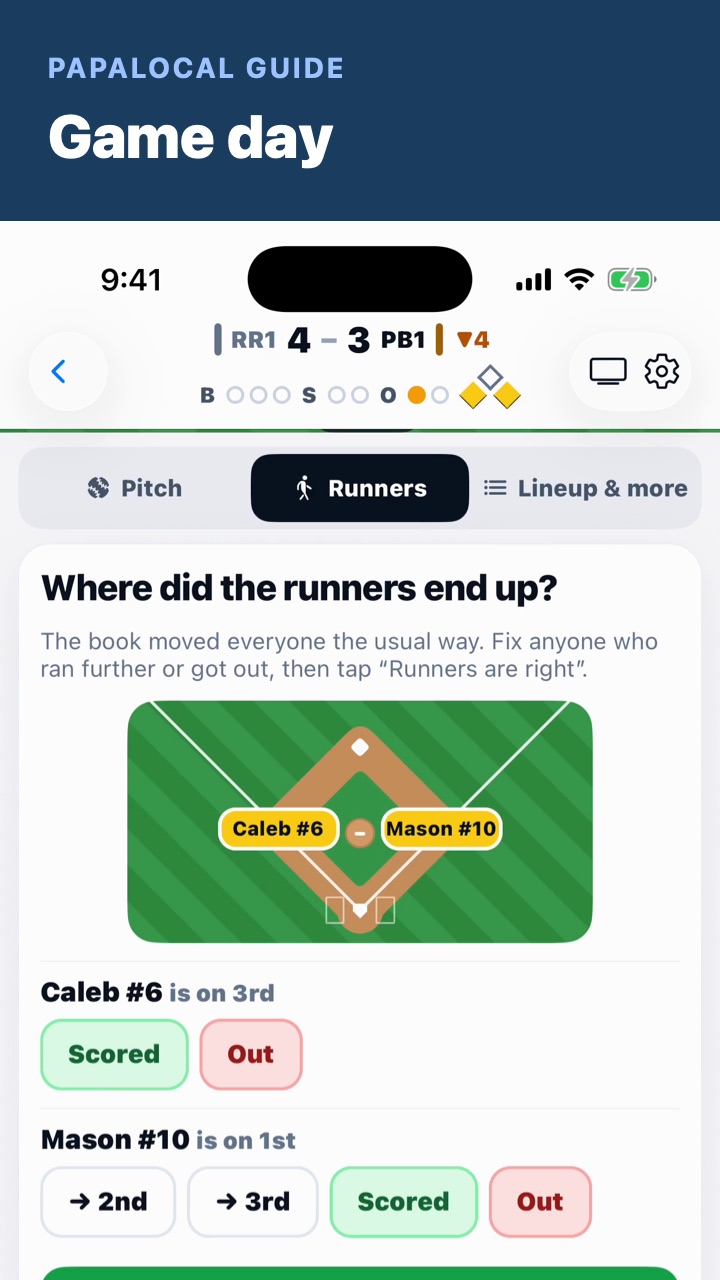 Game day: the scorebook and the live score
Keep score on your phone: tap each pitch, where the ball landed and what the runners did, and the count and the score move. Families follow along on Gamecast, which updates by itself.
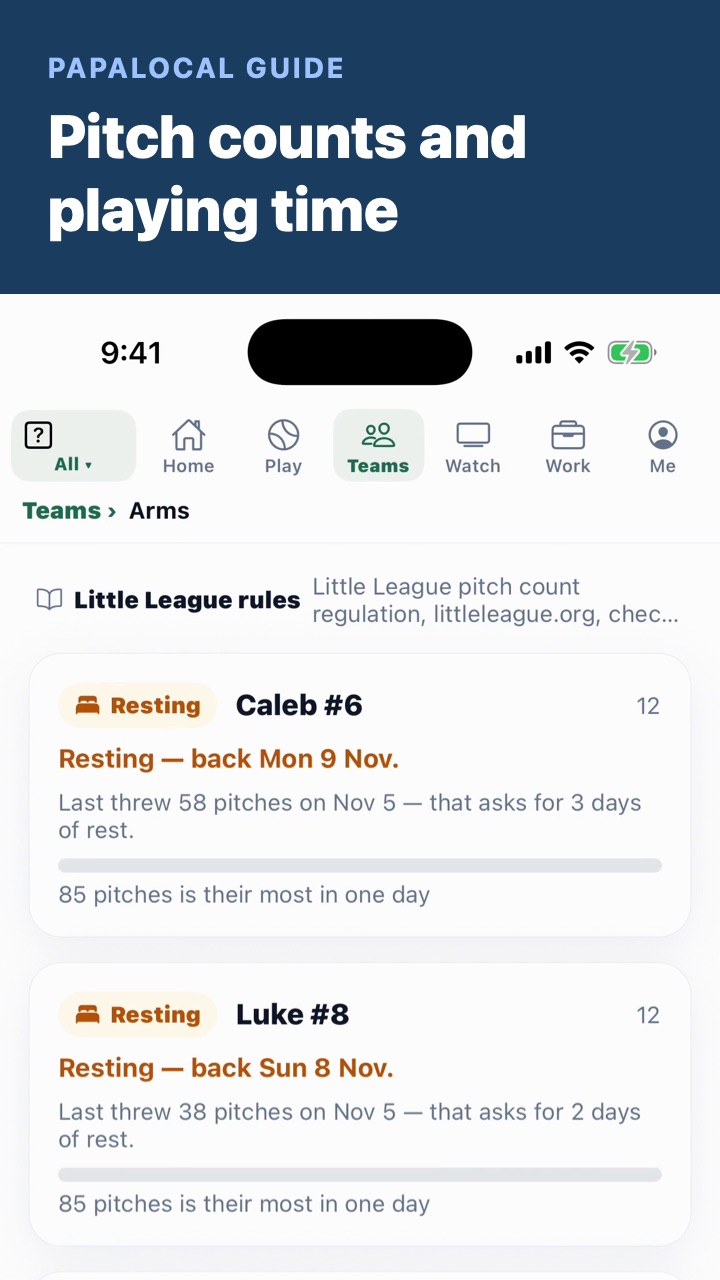 Pitch counts and playing time
Arms reads the pitches your scorekeeper records and says who is resting and until when, under the rules you pick. Stats and Playing time fill in from the same scorebook. The coach decides.
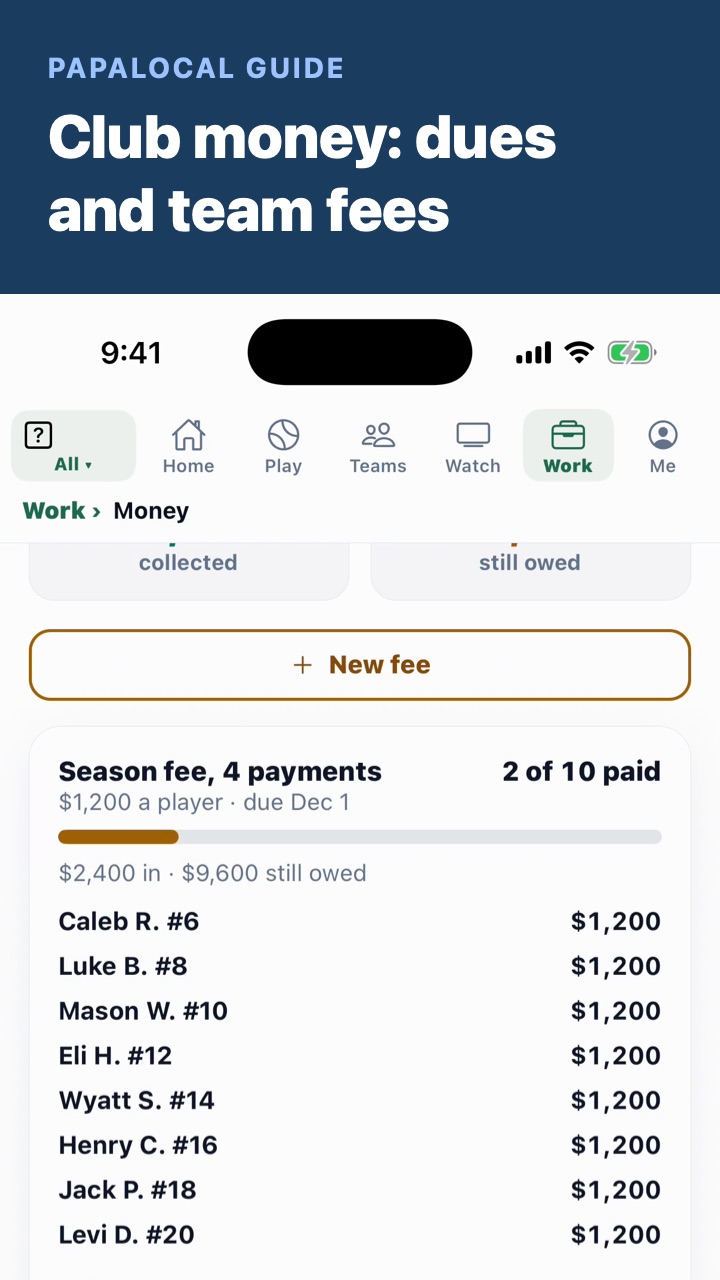 Club money: dues and team fees
Set monthly dues, see who has paid and who owes, follow a season fee split into payments a month apart, send a reminder, and see what a family sees with each payment's own date.
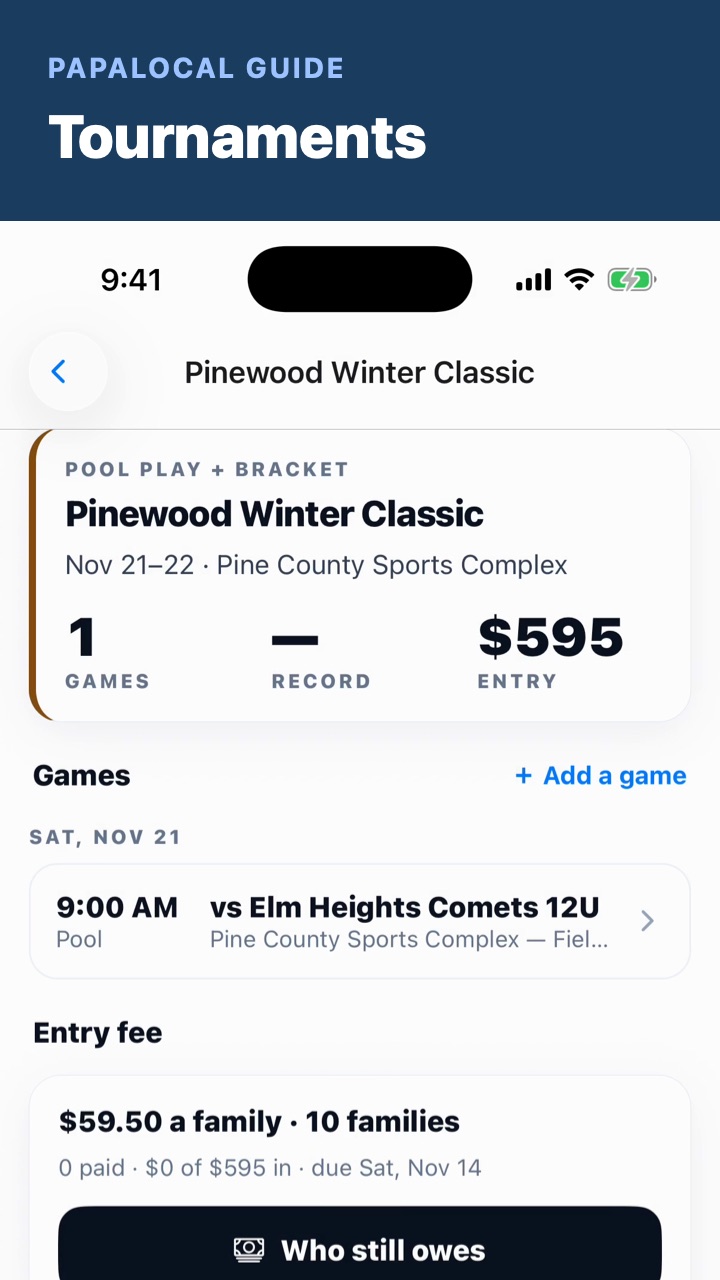 Tournaments
Add a tournament weekend with where it is, its format and the entry fee, add its games, split the fee evenly among the families, and see who still owes.
This is Papalocal
One place for your town, your people and your own week — a short paper each morning, an AI that knows you, and somewhere to keep what matters.
Get it on iPhone Get it on Android Open on the web